.jpg)




.jpg)



Design and build: solid, robust, and pleasantly different
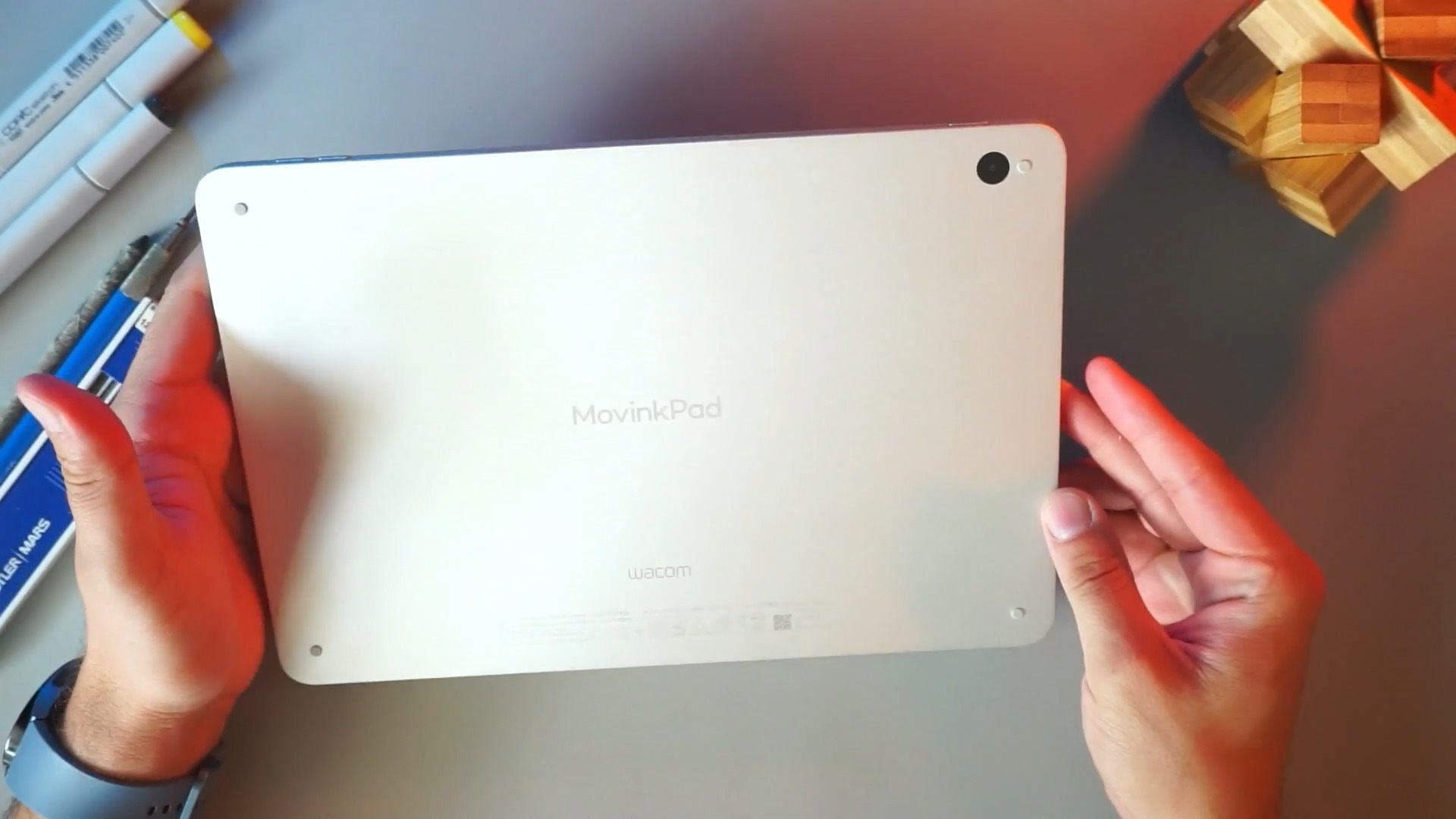
The first thing I mention when I hold the Movink Pad 11 is its weight and solidity. The body has a metallic, almost aluminum feel. It actually feels a bit thicker and heavier than the Pro 14, which uses acrylic materials. That robustness is a plus for me, and I want to toss a sketch tool into my bag without worrying about it flexing or cracking.
Cover and accessories
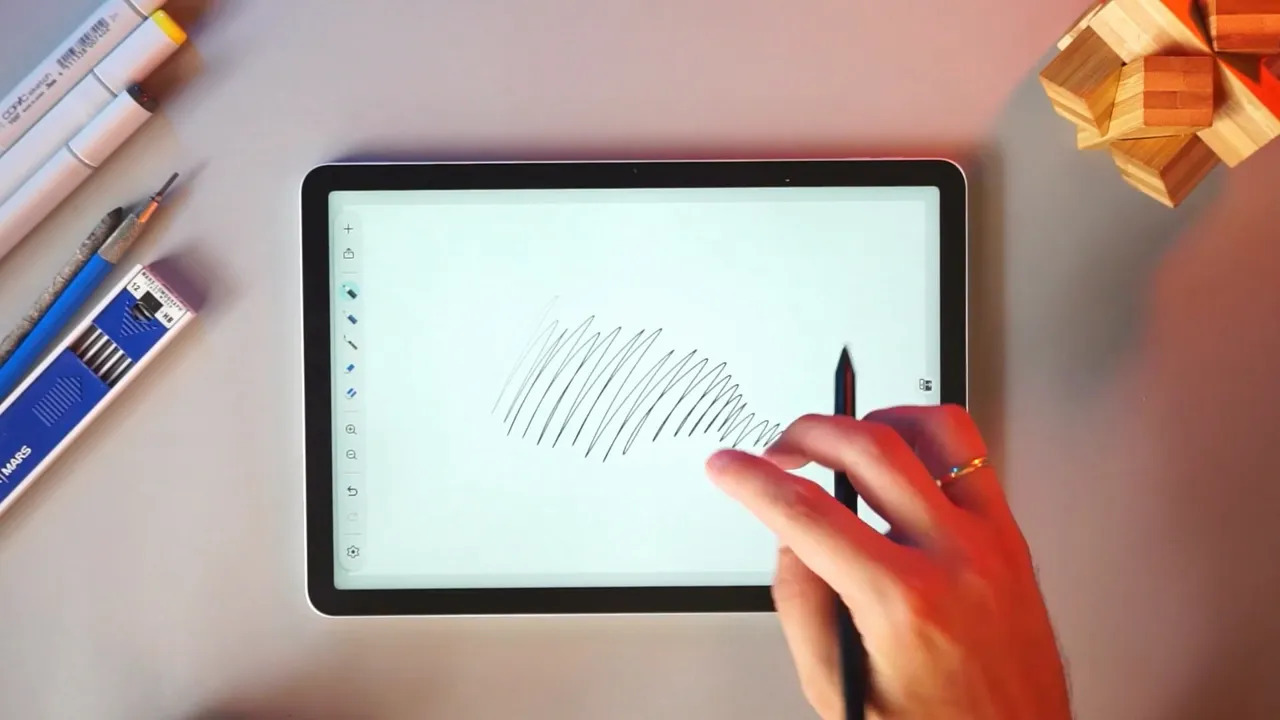
The cover is one of those small details that changes how you use a device. The optional cover wraps around the tablet, stores the Pro Pen 3, and folds into a practical drawing angle thanks to a little flap. Once I add the cover, the Movink Pad 11 becomes a self-contained sketching setup, and it's very handy for commuting or quick sessions in a café. I do wish the cover shipped in the box, because it really completes the experience.
Display and pen: great for sketching
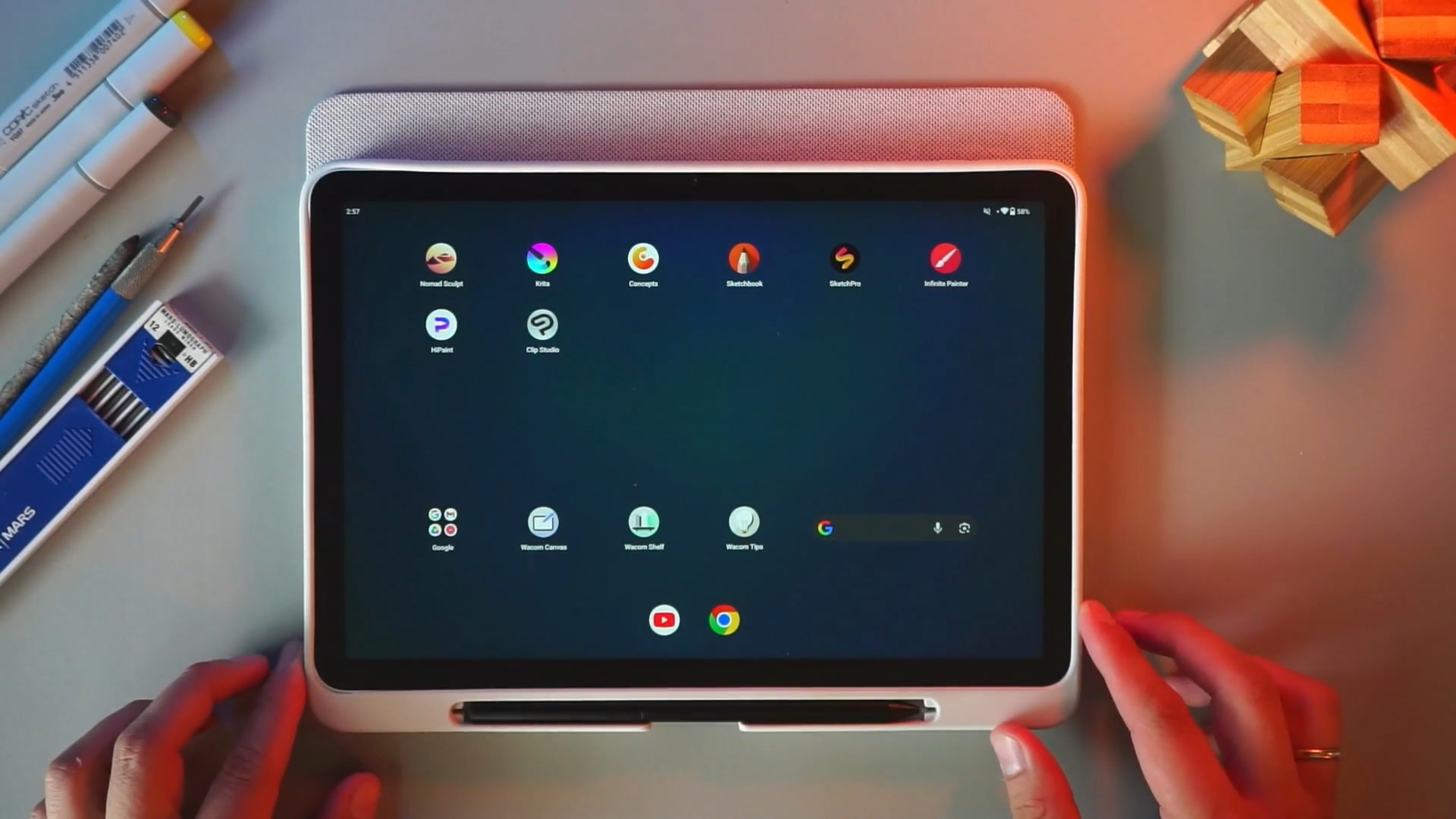
The screen isn't OLED like the Pro 14, but it's still very good. Colors are vibrant enough, resolution is sharp, and for the kinds of marks I make and it feels excellent. At extreme angles, the vibrancy drops a bit, but in normal usage, it's perfectly fine.
The Movink Pad 11 uses the Pro Pen 3, which gives the same pressure sensitivity and 60-degree tilt support as the larger model. Battery life has been fantastic during long sketching sessions. That combination, solid display, responsive pen, and long battery puts it in a sweet spot for ideation work.
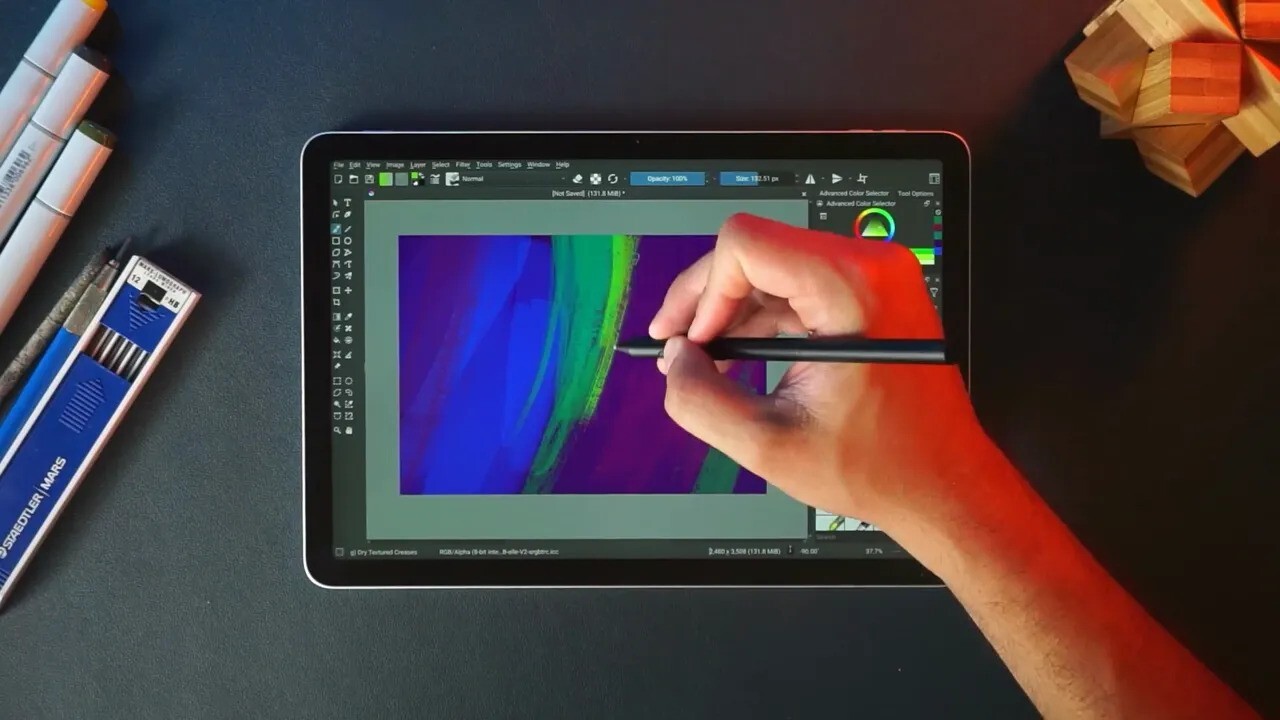
Performance: entry to mid-range, designed for ideation
The tablet is powered by a MediaTek Helio G99 processor. It's not a powerhouse, and it's not intended to replace a desktop or the more capable Movink Pad Pro 14. What matters is whether it lets you sketch, try ideas, and enjoy the process. For those tasks, it does very well.
Performance feels snappy for 2D sketching and painting apps. For heavier tasks you notice the limitations, but that doesn't make the device useless—just focused. Think of it as a portable notebook that happens to run creative apps.
Apps I use and why
- Infinite Painter: Fast, clean, intuitive UI. Ideal for warmups, thumbnails, and loose sketches. The brushes feel great, and the app stays out of the way.
- Sketchbook: My go-to for rapid idea generation. Excellent for exploring silhouettes and composition. Symmetry tools speed up iteration.
- Concepts: A visual thinking app for planning, notes, and workflows. Great for course planning or rough diagrams that I want to revisit later.
- HiPaint: The closest Android app I found to Procreate. Comfortable for painting and rough color passes are useful for getting color ideas down fast.
- Krita: A desktop-style app well adapted to tablets. I use Krita for thumbnails and exploration when I want really nice brush behavior paired with a keyboard.
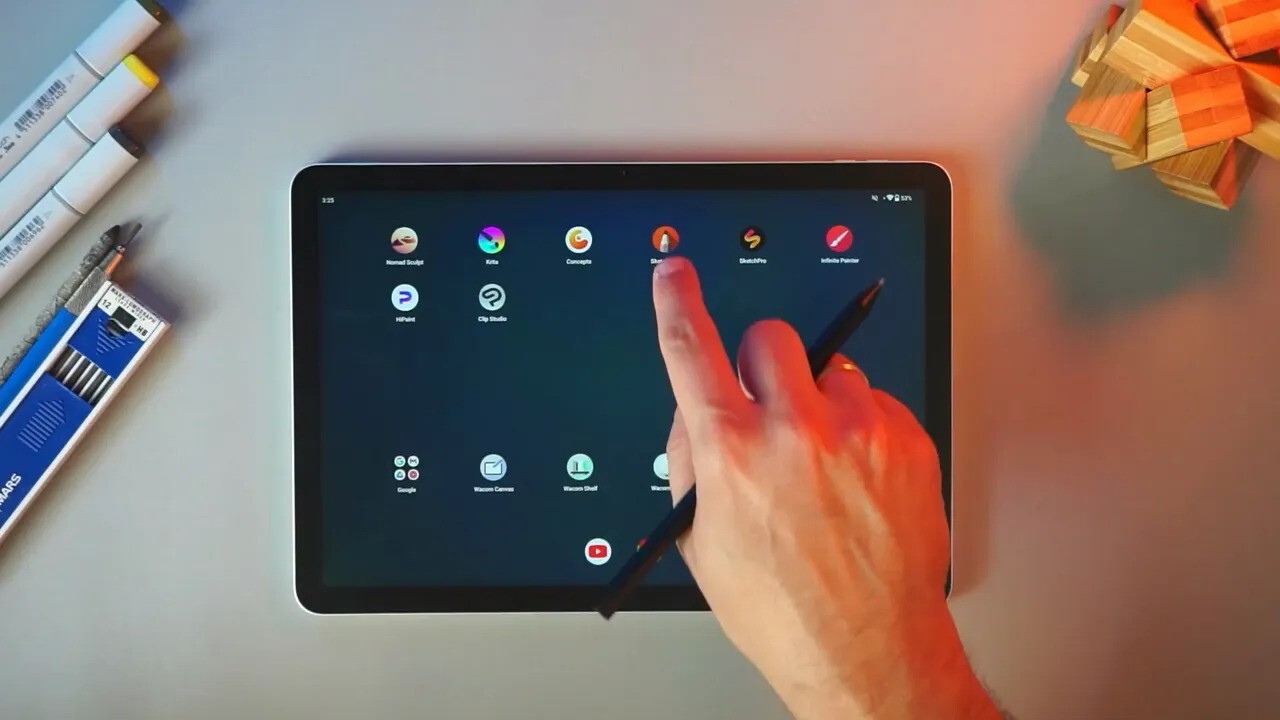
3D sketching with Nomad Sculpt
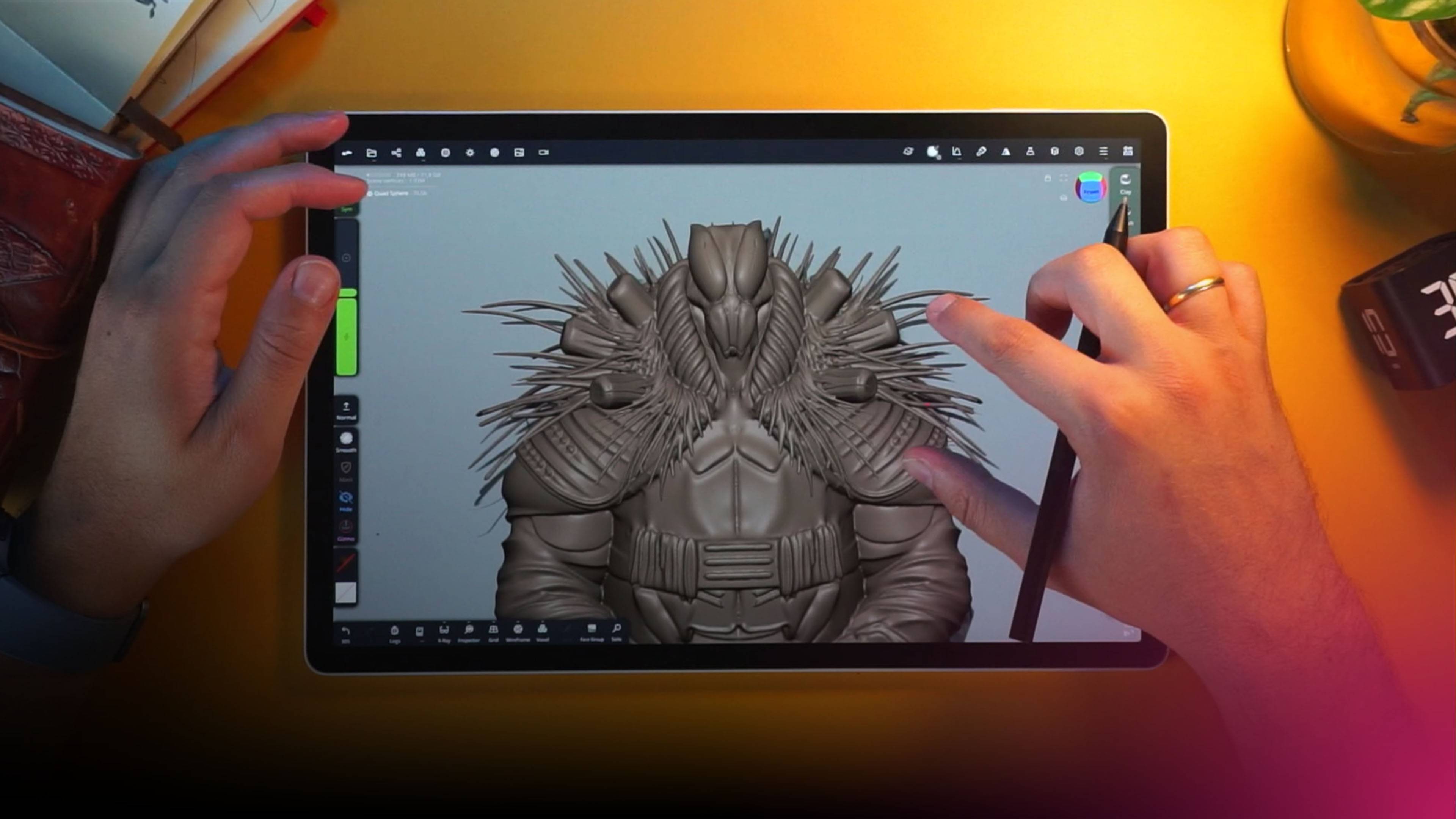
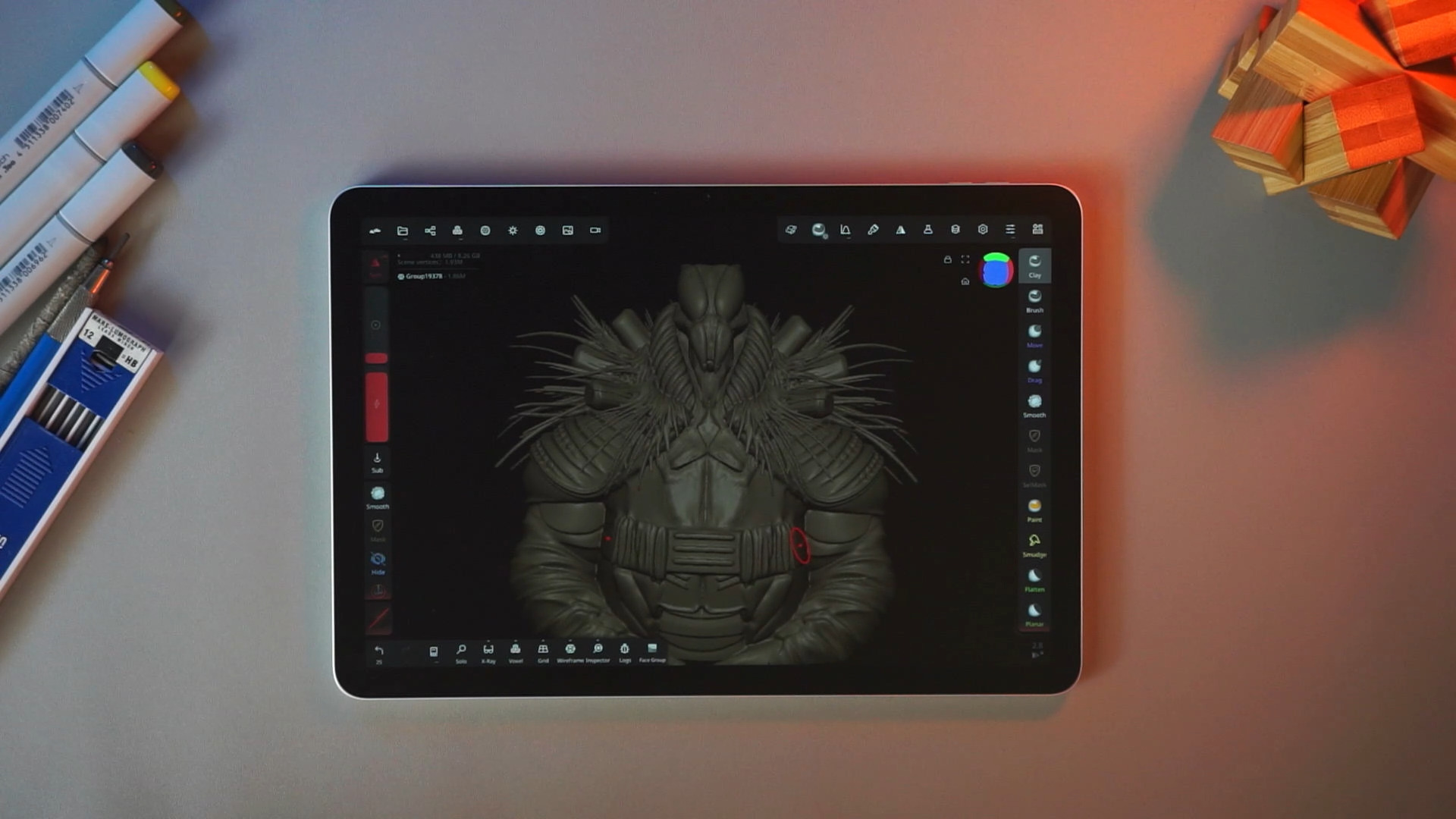
Nomad Sculpt runs surprisingly well on this class of hardware. For rough blockouts and simple forms, I have a blast sculpting on the Movink Pad 11. If you push it with full rendering, post-processing, global illumination, and ambient occlusion, you'll see a noticeable difference compared to the Pro 14; there's more lag and slower frame rates.
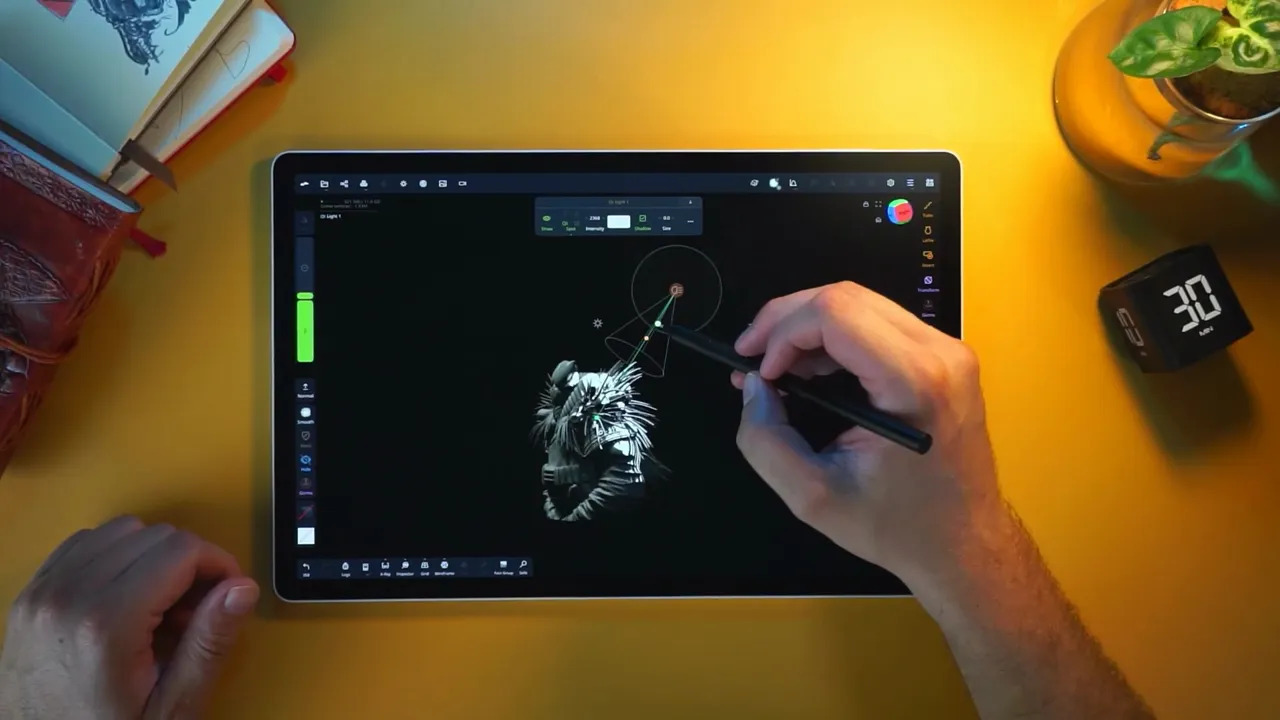
The key is scope control. Turn off the visual bells and whistles, use a simple matcap, and focus on sculpting. In those conditions, sculpting feels smooth, and brushstrokes remain responsive even on models with several hundred thousand points. In one test, I work with a sphere at roughly 650,000 points and the responsiveness is still very usable for sketching forms.
Cameras and extras
Unlike the Pro 14, the Movink Pad 11 includes both a front and a rear camera. I rarely use them, but they are handy for snapping quick reference photos or scanning notes. These small conveniences make the tablet feel more like a complete sketching device rather than just a glorified display.
Ergonomics and portability
Ergonomically, the 11 and 14 feel very different. The Pro 14 is fantastic for more serious work thanks to its larger, wider screen. But the 11 shines in portability. It is easier to hold and more comfortable for rapid sketch sessions when standing or sitting without a desk.
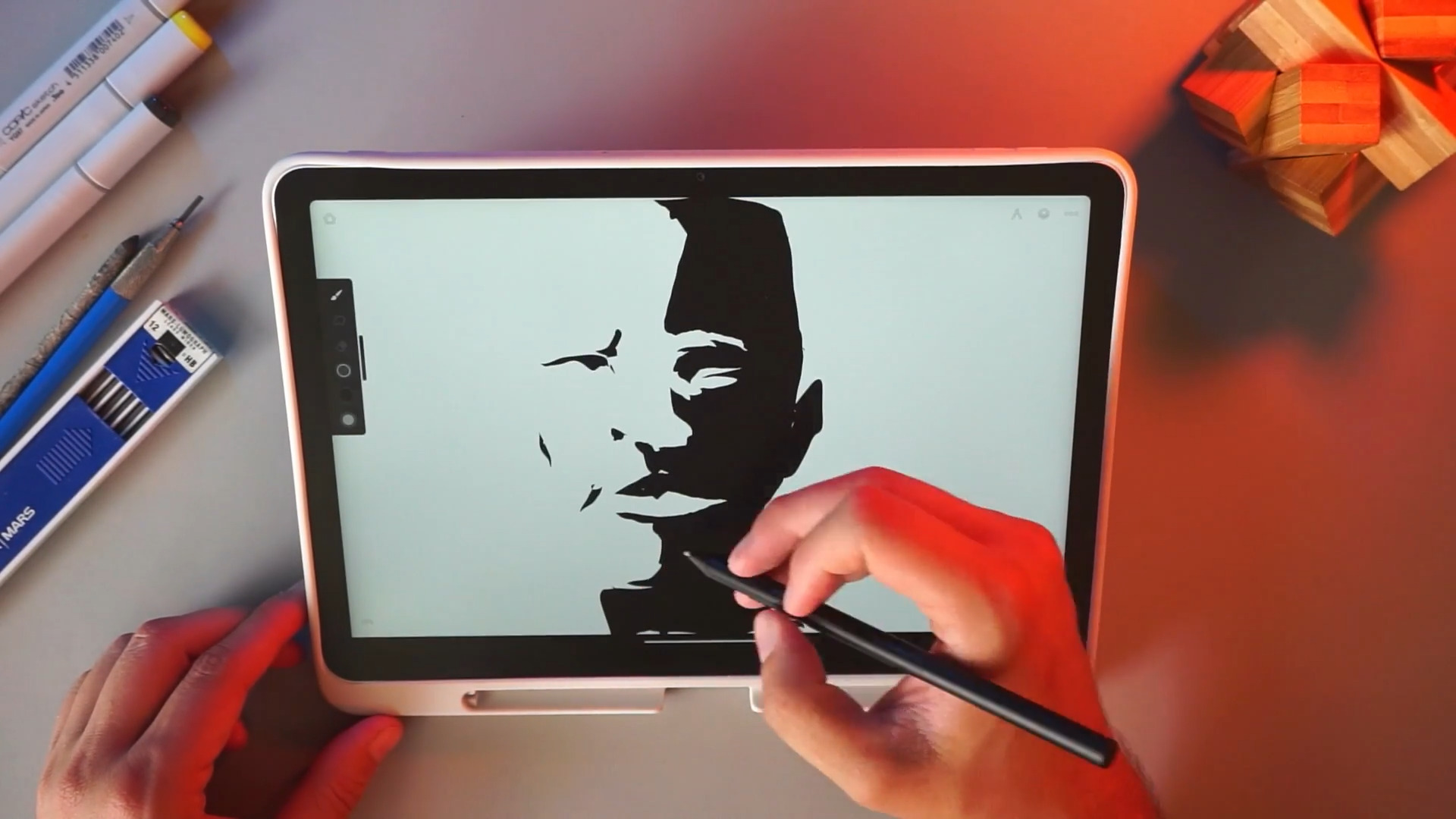
I can comfortably watch a movie, sketch on the bus, or hold it like a notebook while ideating. The natural handling is one of the main selling points.
Workflow & connectivity
Pairing a Bluetooth keyboard and mouse is straightforward and genuinely useful for planning lessons, taking notes, or handling quick layout work. The Movink Pad 11, just like the Movink Pro 14 also includes an instant display feature that links to a laptop. It’s still in beta, but the concept is promising: you let your laptop handle the heavy processing while the tablet functions as a pen display. Once polished, that combination could become a powerful and highly portable setup.
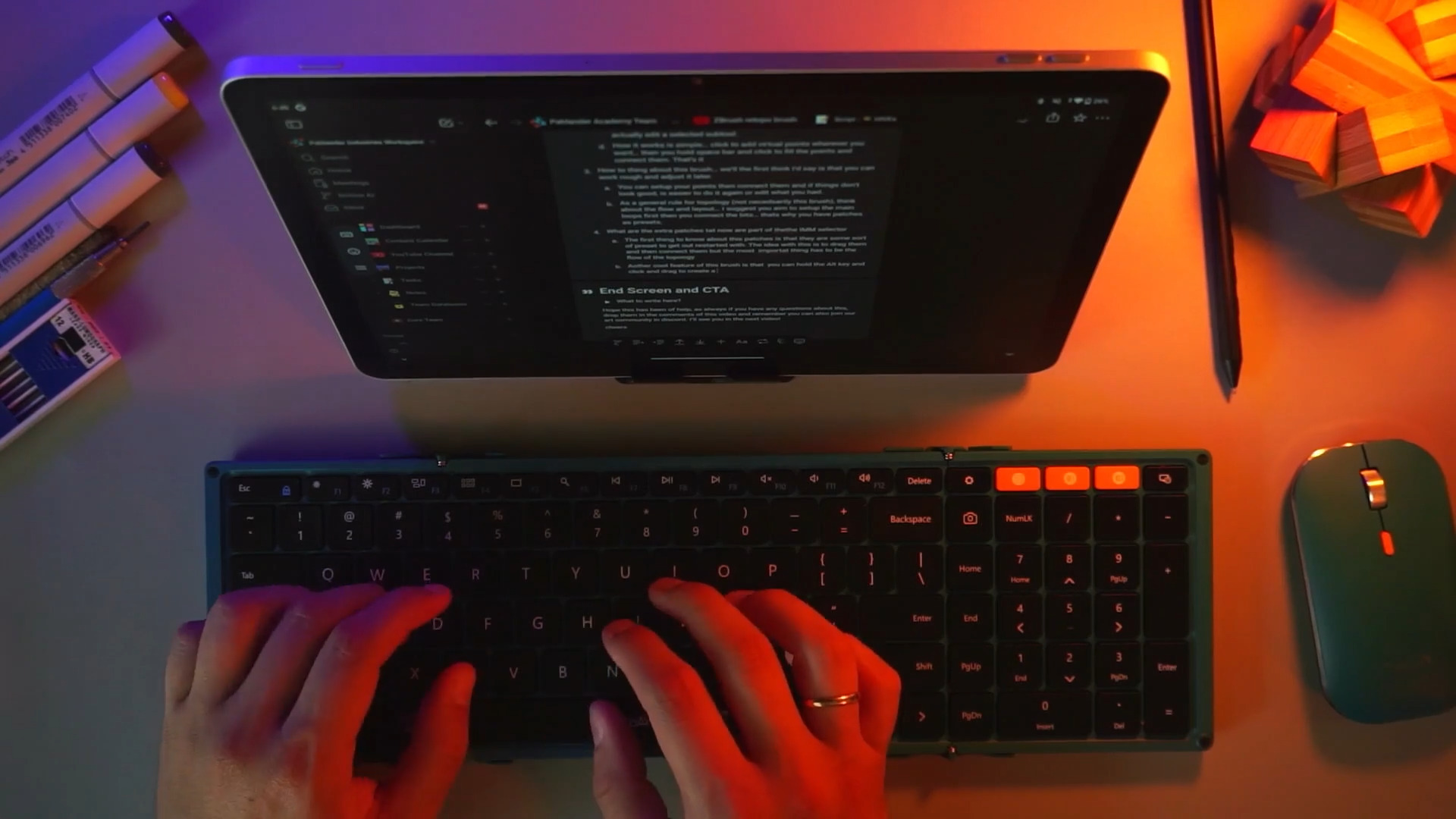
In my workflow, I usually start by warming up in Infinite Painter for quick thumbnails and loose mark-making. From there, I refine silhouettes and compositions in Sketchbook or Concepts. For light color passes, I use HiPaint, and I test brush ideas in Krita. When I want to explore forms in 3D, I block them out in Nomad Sculpt using matcap shading for speed and clarity. Any heavy rendering and final polish, however, I reserve for my desktop workstation.
Final thoughts
Get the Movink Pad 11 if you want a dedicated, portable sketch device that feels close to pen and paper. It’s ideal for artists who need a lightweight ideation tool they can throw in a bag, people who focus on thumbnails, silhouette exploration, and fast iteration, and 3D artists who want a portable blockout device for Nomad Sculpt and quick on-the-go testing.
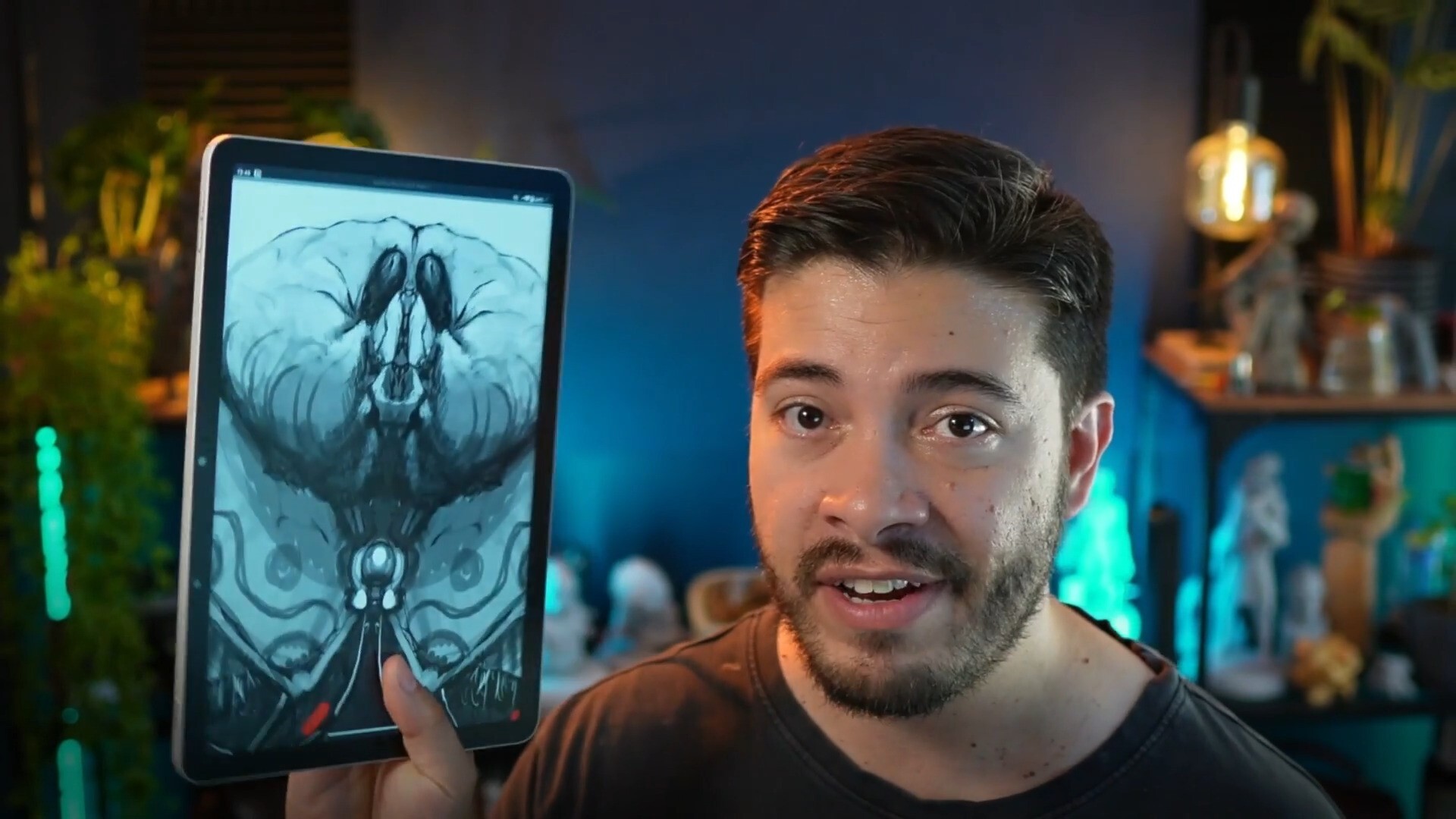
Don’t expect it to replace a desktop setup or handle full production workloads. If you need heavy rendering and all-in-one production power, the Movink Pad Pro 14 is the better choice. The 11 shines as a focused, enjoyable tool for concepting and quick creative work.
The Movink Pad 11 works best as a portable digital sketchbook. It combines solid build quality, an excellent pen experience, and a capable app ecosystem in a compact form. Treat it as a different tool and it becomes a fun, reliable, and genuinely useful addition to a creative workflow.

Movink Pro 14: Desktop-Class Drawing in Your Backpack?
I spend most of my time drawing, sculpting, and moving files between desktop and mobile, after a few weeks of using the Wacom Movink Pad Pro 14 as my main creative device. I can confidently say this: it’s the first Android tablet that truly feels like a proper Wacom tool, not a compromise. In this review, I cover the unboxing, daily workflow, the surprisingly useful pen-display mode for PC, which apps work well, and the real downsides you should know before buying.
Check it out