




.jpg)



Before diving into the details of the Pro 14, it is helpful to clarify the Wacom Movink product family, which consists of three distinct devices. The Movink Pad Pro 14 is the flagship standalone Android tablet designed for high-end portable creative work. For artists looking for a more compact or entry-level alternative, the Movink Pad 11 serves as a smaller, more affordable standalone version. It is important to distinguish these "Pad" models from the standard Movink, which is not a standalone tablet but a lightweight pen display that must be plugged into a computer to function.
Unboxing and first impressions
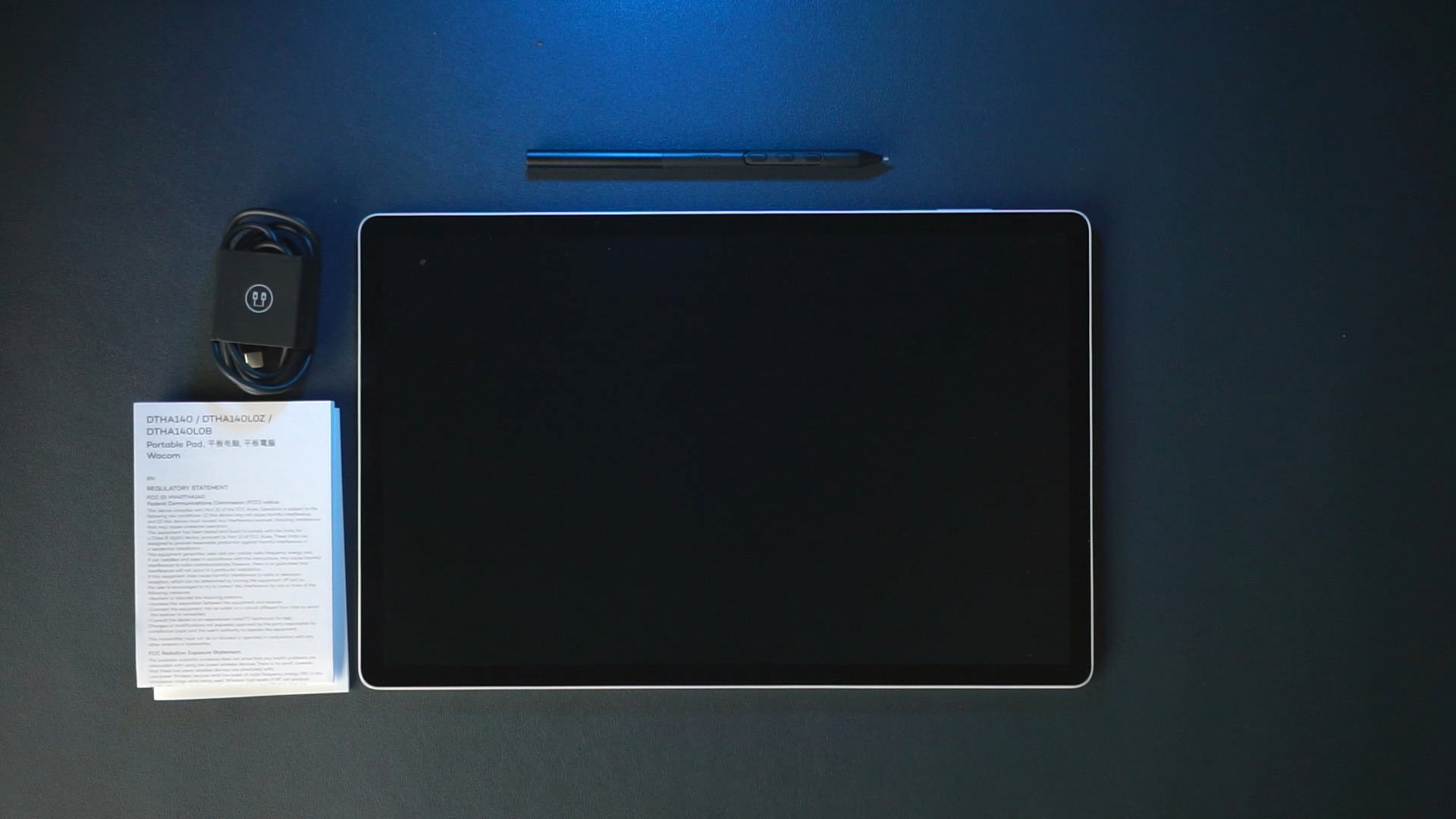
Unboxing is genuinely satisfying. The tablet feels absurdly thin and light right out of the gate. Inside, you get the MovinkPad Pro 14, a USB-C cable, the Pro Pen 3 with its comfortable slim grip, and the usual paperwork. I picked up the cover and Wacom foldable stand separately; both feel like worthwhile additions, though I do wish the cover came in the box.
The screen is a large OLED, and it looks beautiful. The matte finish reduces glare and gives the display a pleasant paper-like feel. The device itself feels premium: clean lines, solid build, and subtle rubber feet on the back so it doesn't slide when you lay it flat.
.jpg)
Drawing experience: That Wacom feeling
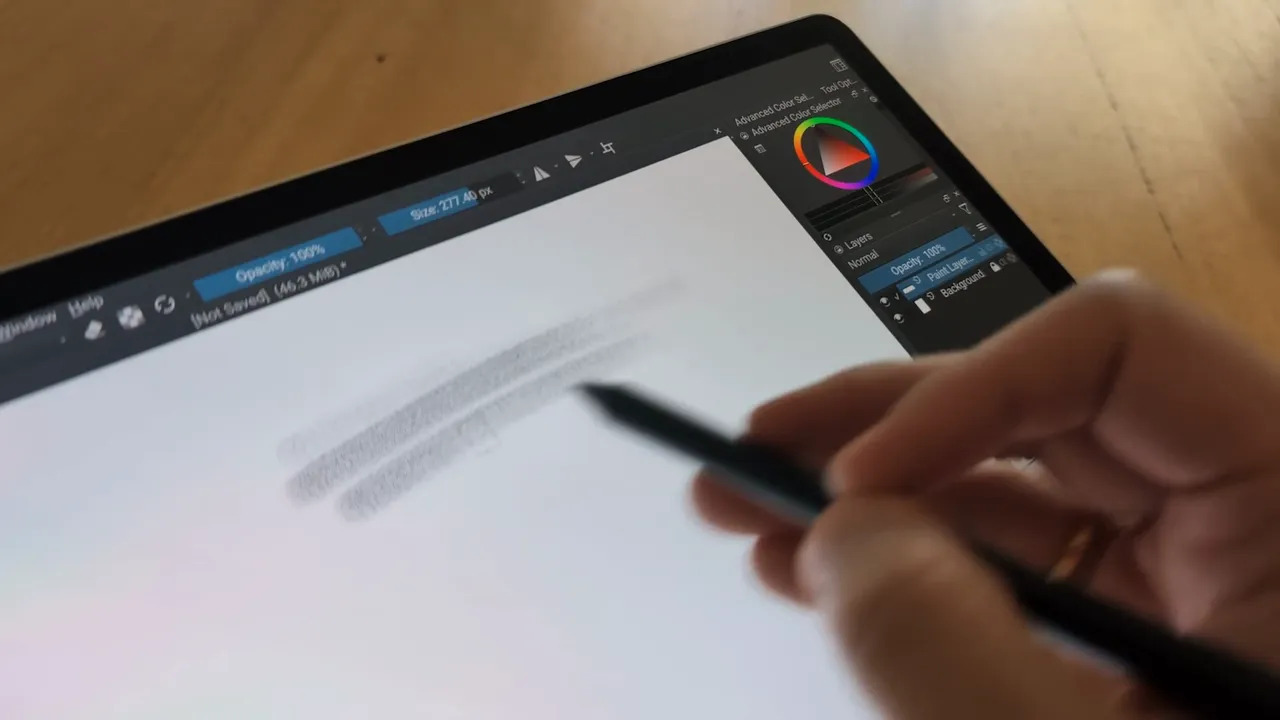
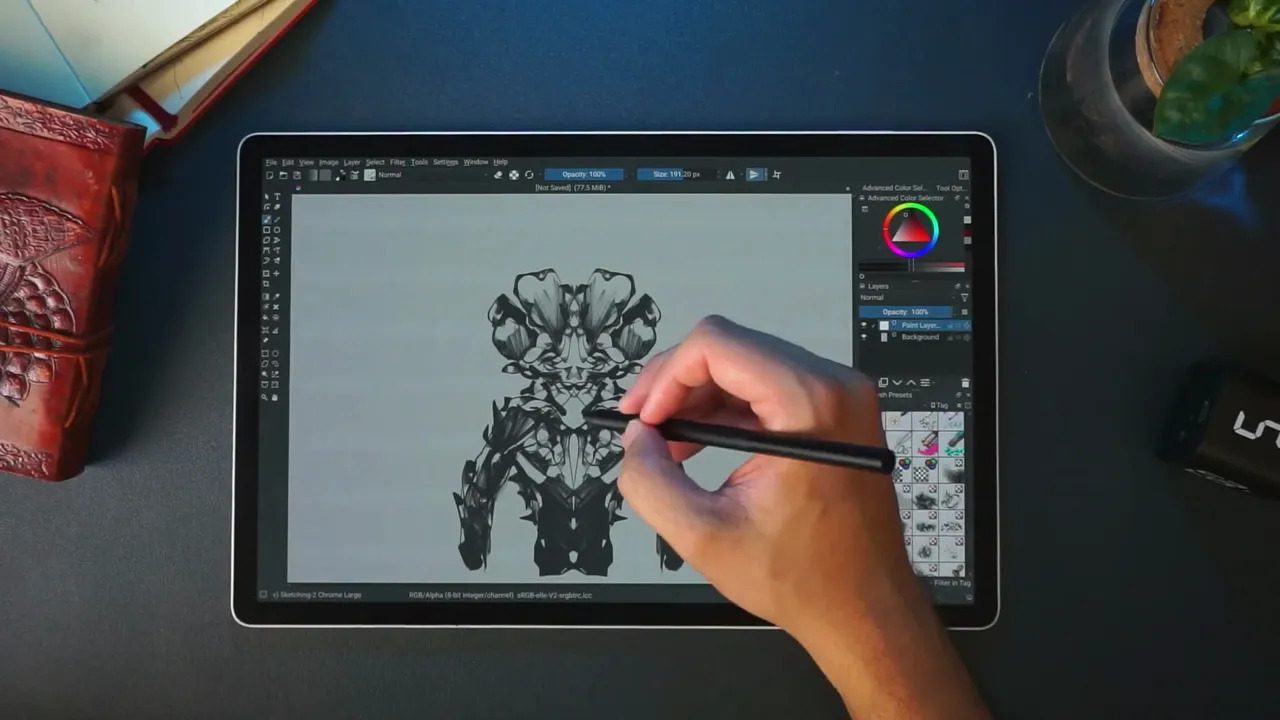
When you start drawing, the MovinkPad Pro 14 shows why Wacom has a reputation. The pen response is excellent: pressure feels very natural, and tilt works beautifully in apps that support it. I tested sketching and painting in Infinite Painter and didn’t notice any lag or cursor misalignment straight out of the box. It behaves like a proper Wacom device rather than an Android tablet trying to be a drawing tool.
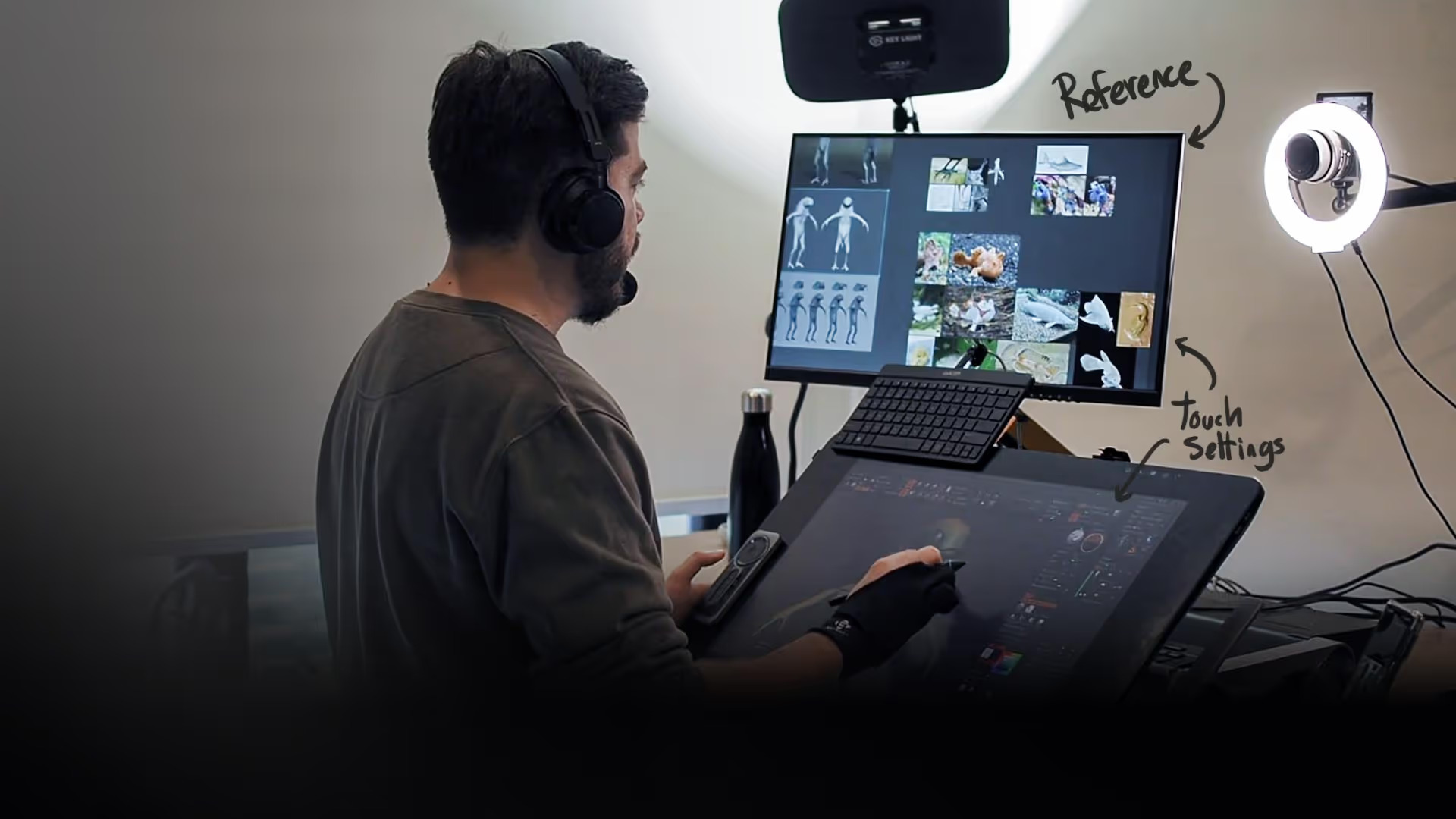
Two small notes on ergonomics: there’s no built-in stand, so it arrives as a flat slab. That sounds limiting, but because it’s so light, you can comfortably hold it and sketch standing or lean it on a lap. If you want a desk setup, the Wacom foldable stand gives a great angle.
Using it as a pen display for your PC
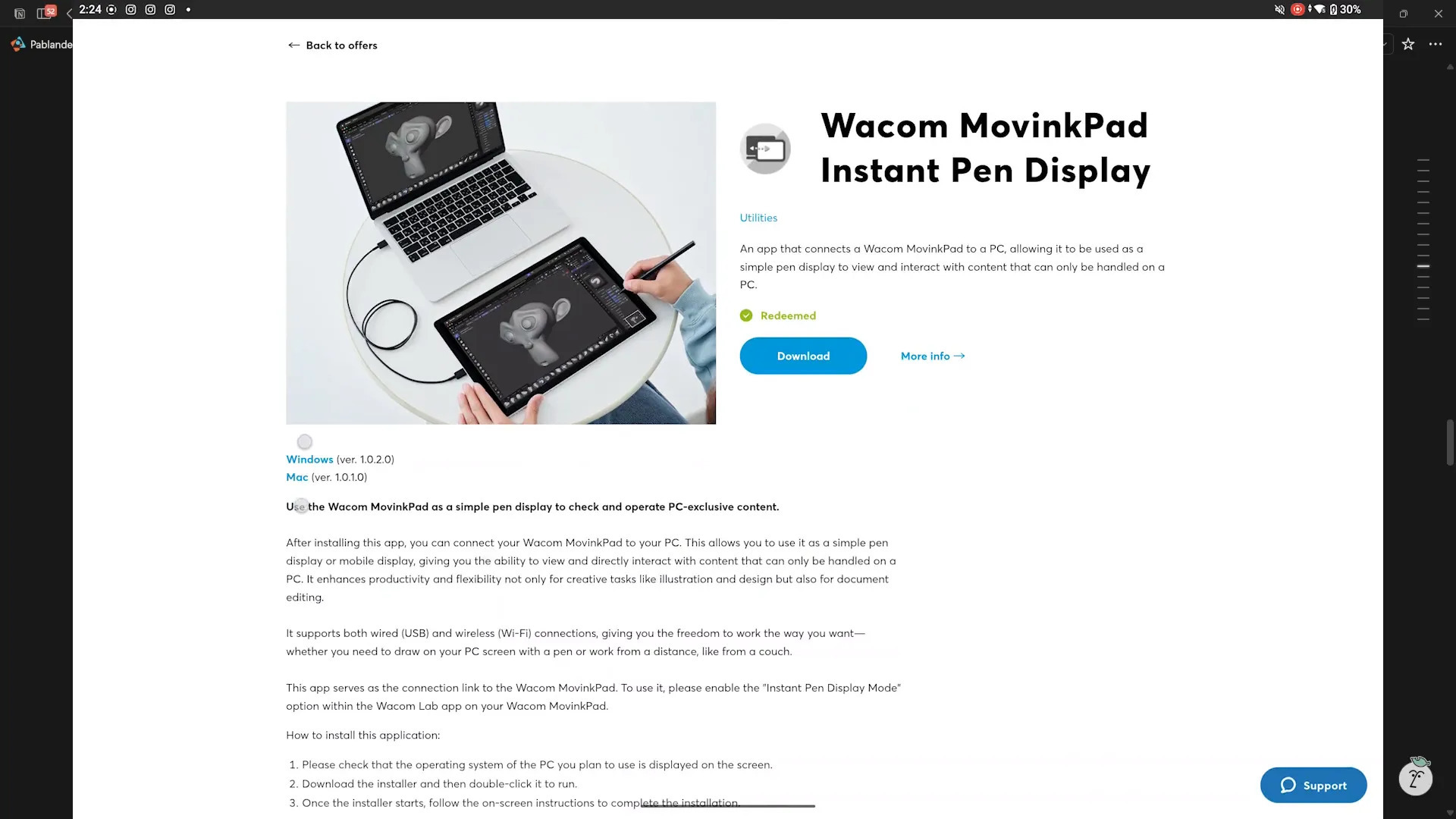
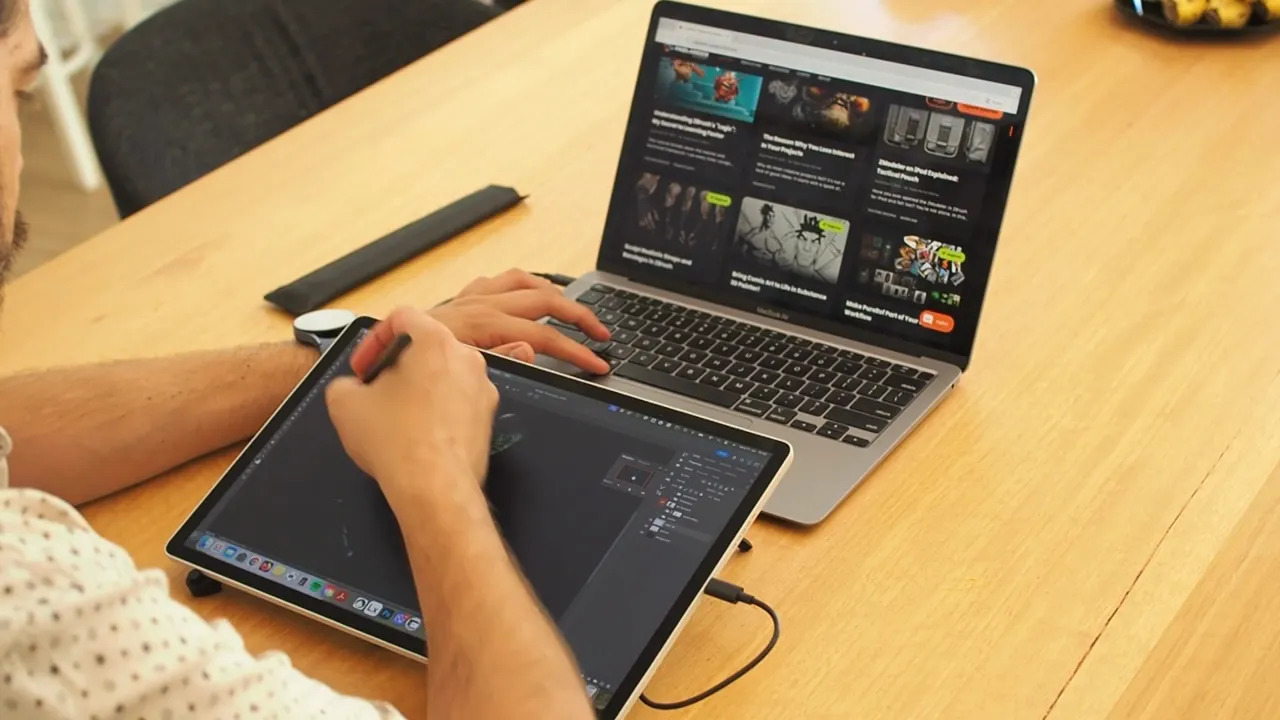
One of the most exciting things: the MovinkPad Pro 14 can act as a pen display for your PC, wirelessly or via USB. Think of it as a mini Cintiq you can carry to the couch. This is still an evolving feature, but it works and opens a lot of possibilities, all usable from the tablet while rendering on your desktop.
There’s a setup process and a few quirks, so it’s not quite plug-and-play. To enable Instant Pen Display, you first register your MovinkPad on Wacom’s support site and download the “Wacom MovinkPad Instant Pen Display” software. On the tablet, go to Settings → About Pad and tap the Build Number seven times to unlock Developer Mode, then enable USB debugging under System → Developer options. Finally, head to Settings → Wacom Lab, turn on Instant Pen Display mode, and pull down the notifications panel to tap the Instant Pen Display button and connect.
While in display mode, there are a few important limitations: the cursor only appears when the pen touches the screen, with no hover tracking like a full Cintiq, and the pen buttons can’t be fully customized, instead opening a small side panel with modifier keys (Ctrl, Alt, Shift) and a disconnect option. These are minor inconveniences if you have a keyboard nearby, but worth noting if your workflow relies heavily on pen-button shortcuts.
Apps that work best
The MovinkPad Pro 14 is a great piece of hardware, but it runs Android, so the app ecosystem differs from iPad OS. That said, there are excellent apps that make the tablet useful for serious work.
- Infinite Painter — My go-to for sketching and paint-overs. Great brushes, responsive, and simple to use.
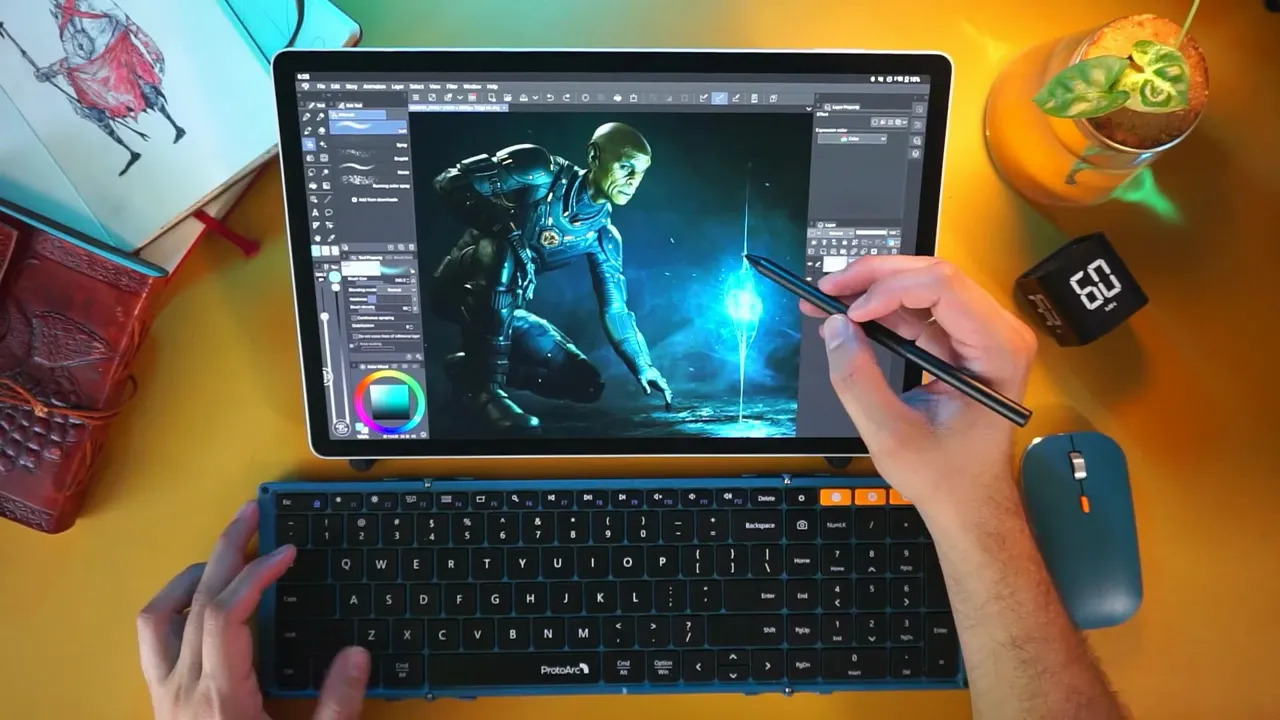
- Clip Studio Paint — A paid app, but the closest thing to Photoshop-like control on Android. The tablet often ships with a promo that gives a long trial.
- Krita — Big win. Krita’s brushes are fantastic and it runs well, though it’s technically a desktop port so you’ll see some popups and quirks.
- Concepts — Fantastic for planning, note-taking, and quick mockups.
- Sketchbook — Solid for thumbnails and exploring ideas quickly; symmetry and simple UI make it ideal for concept work.
Sculpting on the MovinkPad Pro 14
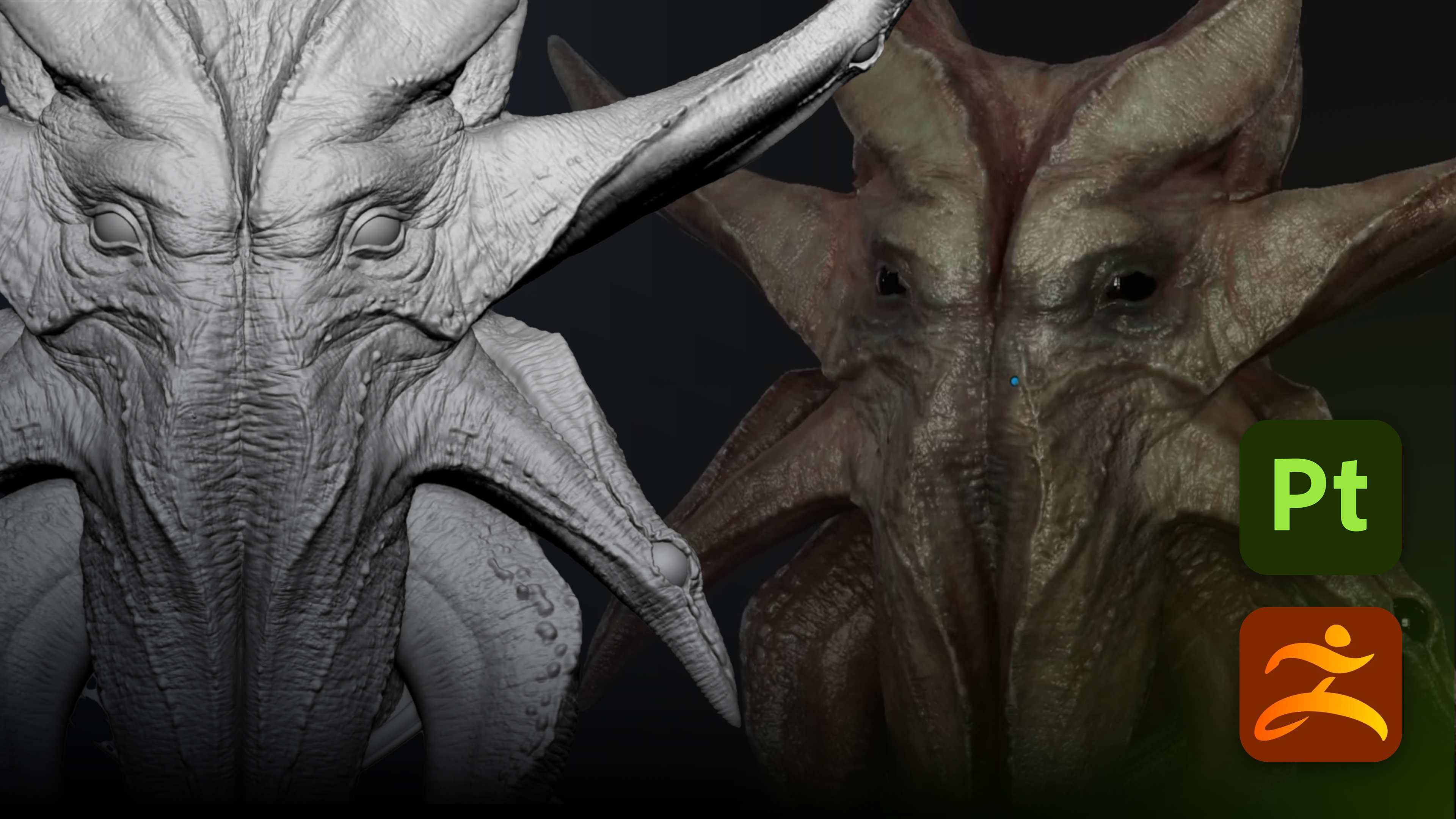
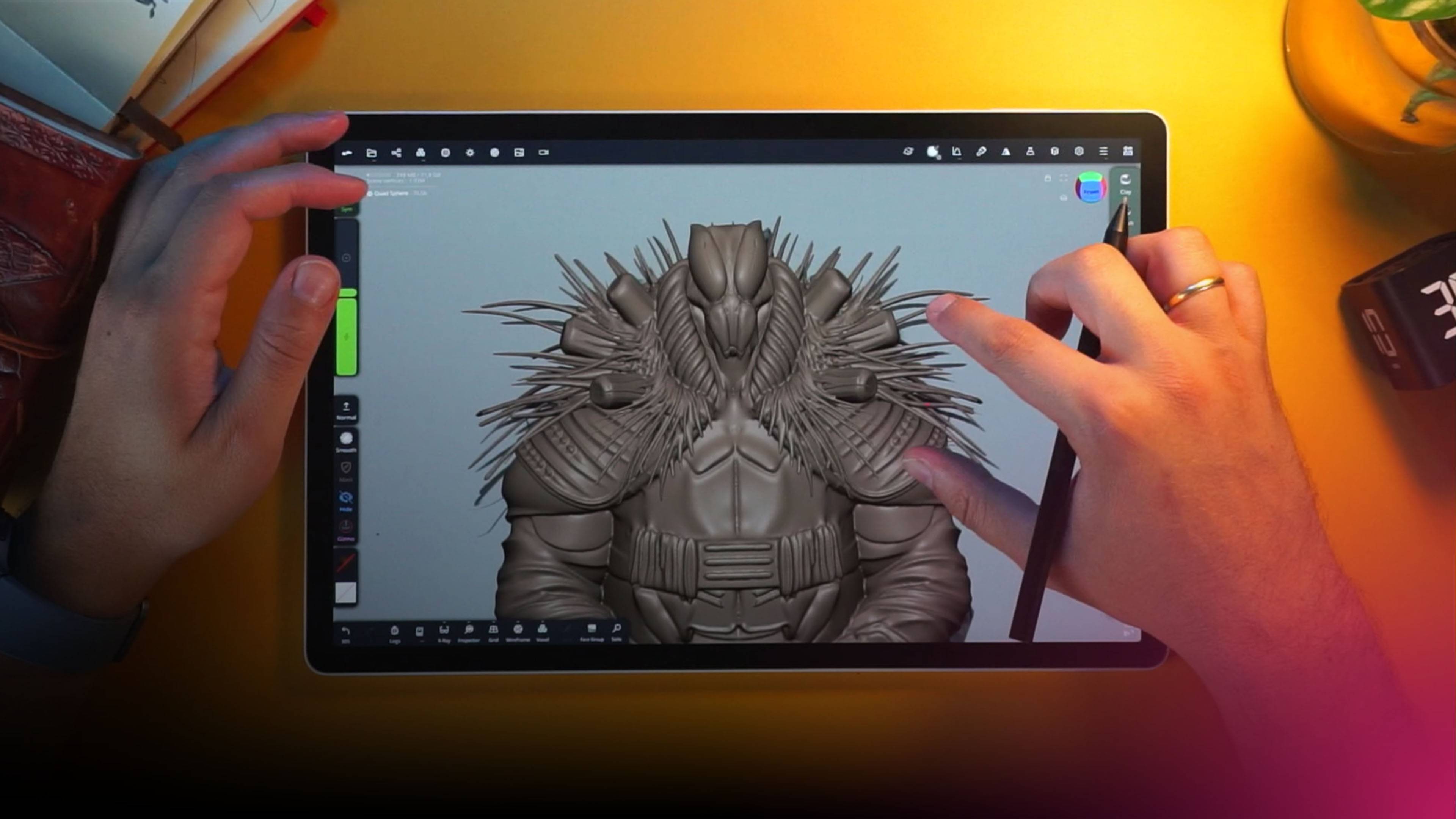
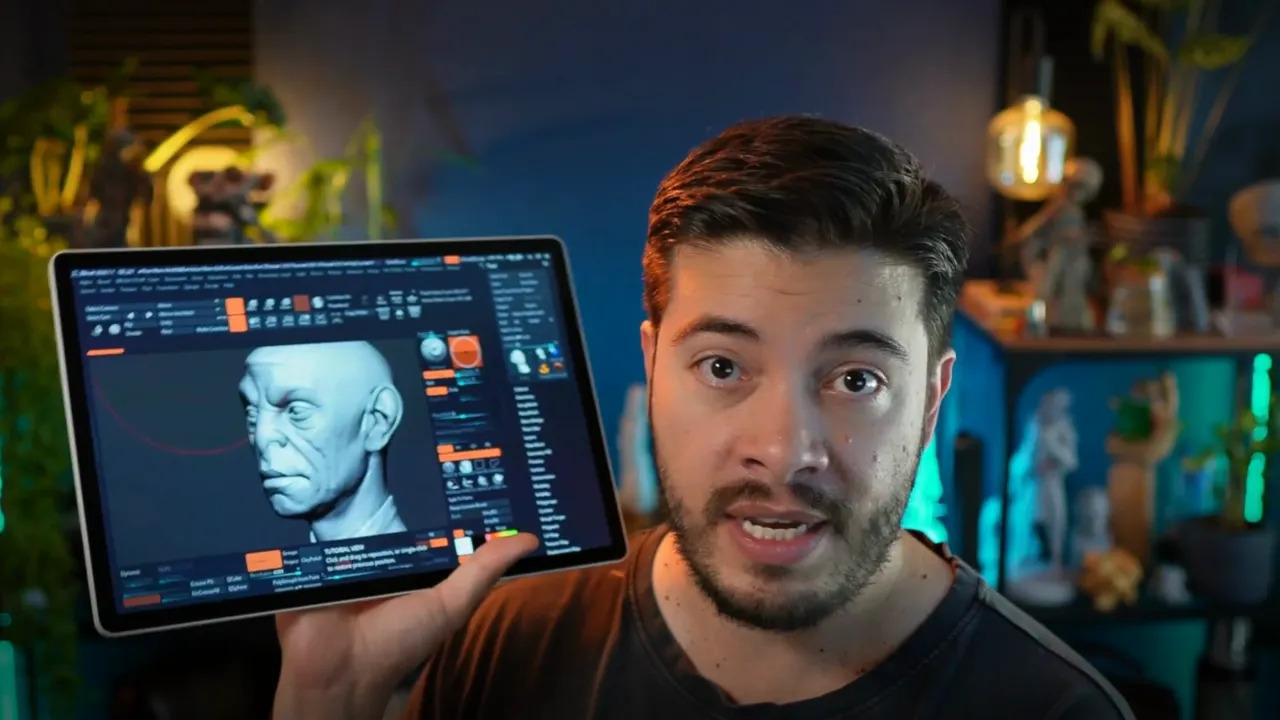
For 3D work, Nomad Sculpt is the clear winner on Android. It runs very well on this tablet: responsive brushes, easy reference image loading, and real-time rendering features that impressed me.
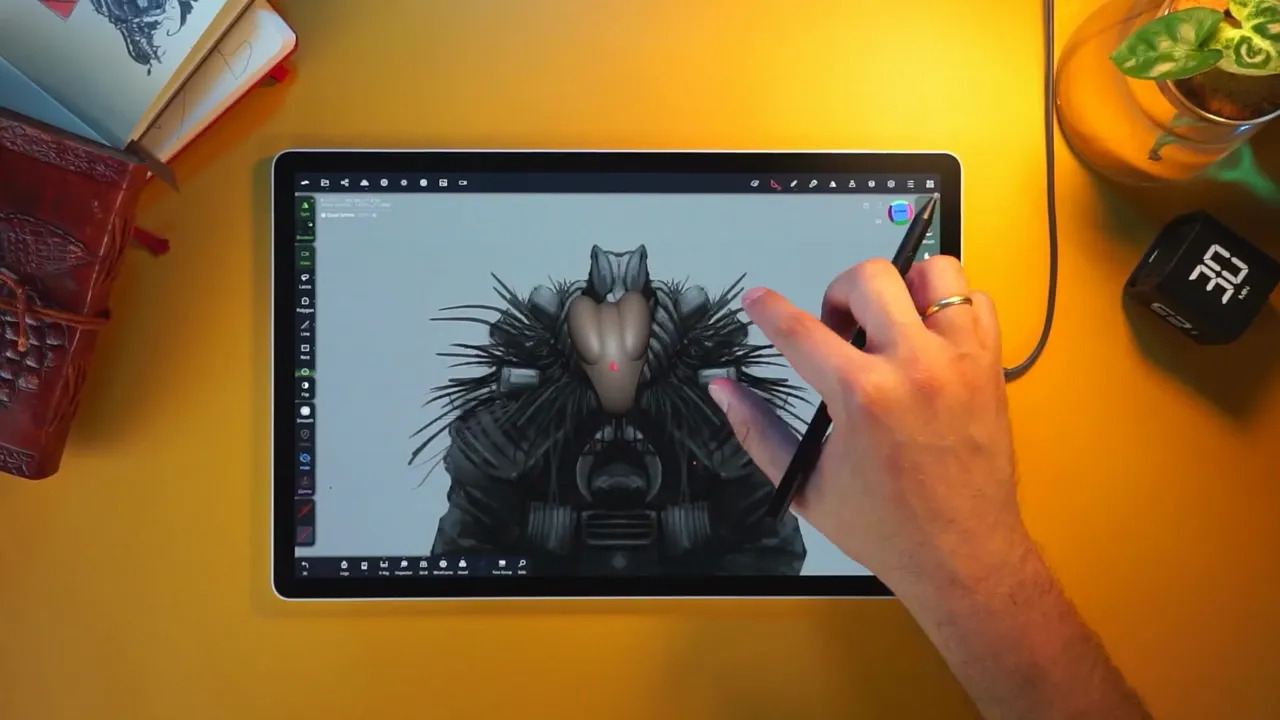
I pushed a test sculpt close to 3 million polygons with global illumination, AO, depth of field, curvature, and post-processing all enabled. It held up surprisingly well but there’s a tiny hiccup when you start rotating or zooming. Overall, you get a smooth sculpting experience on a portable device.
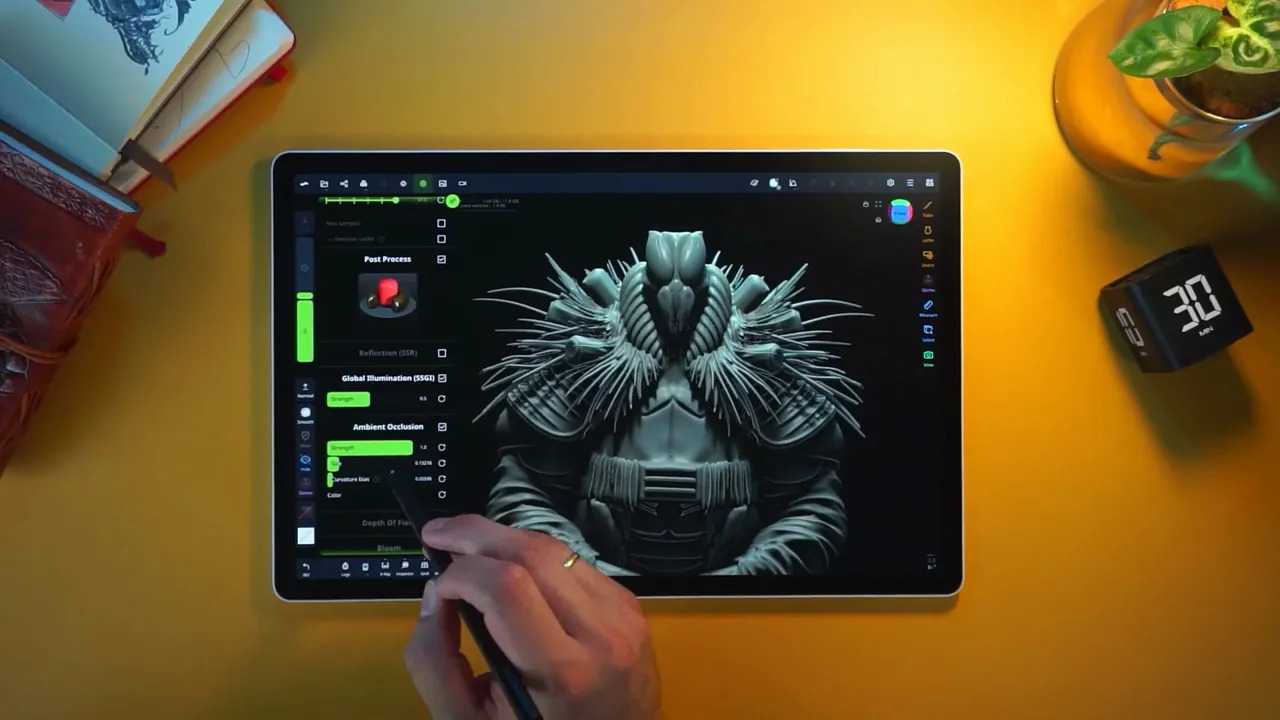
A couple of Nomad quirks: some buttons prefer a lifted pen tap (smooth function activation can require lifting more than expected due to proximity prioritization). It’s odd at first but easy to adapt to.
Travel workflow
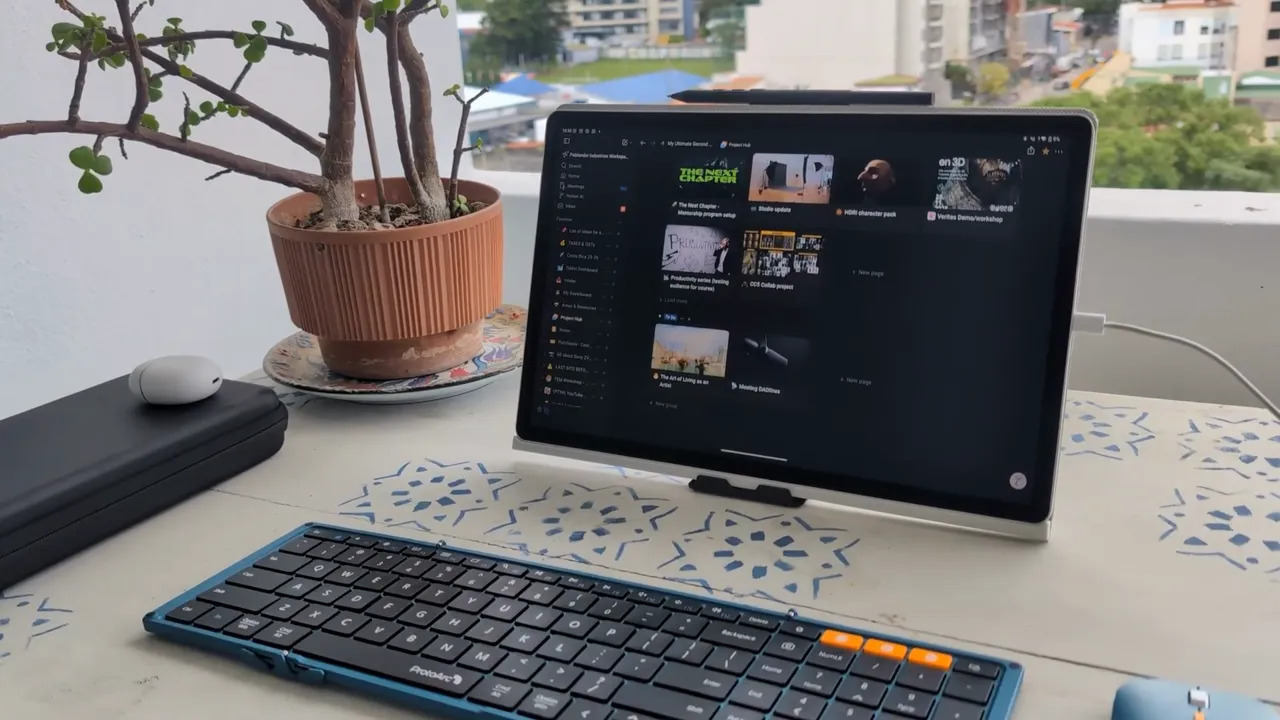
I took the Movink Pad Pro 14 to my trip and left my iPad Pro at home on purpose. My travel setup was a Bluetooth foldable keyboard and a slim mouse (Proto Arc), a small USB-C hub, and the Wacom stand. The whole kit fits in a compact case and is perfect for on-the-go art and admin work.
OLED display but no camera?
The OLED screen is gorgeous for art and surprisingly great for watching content. A fun bonus: the tablet has no camera, which I initially missed, then appreciated. No camera bump means the tablet sits perfectly flat against a desk and a good design choice for a drawing-first device.
Final Thoughts
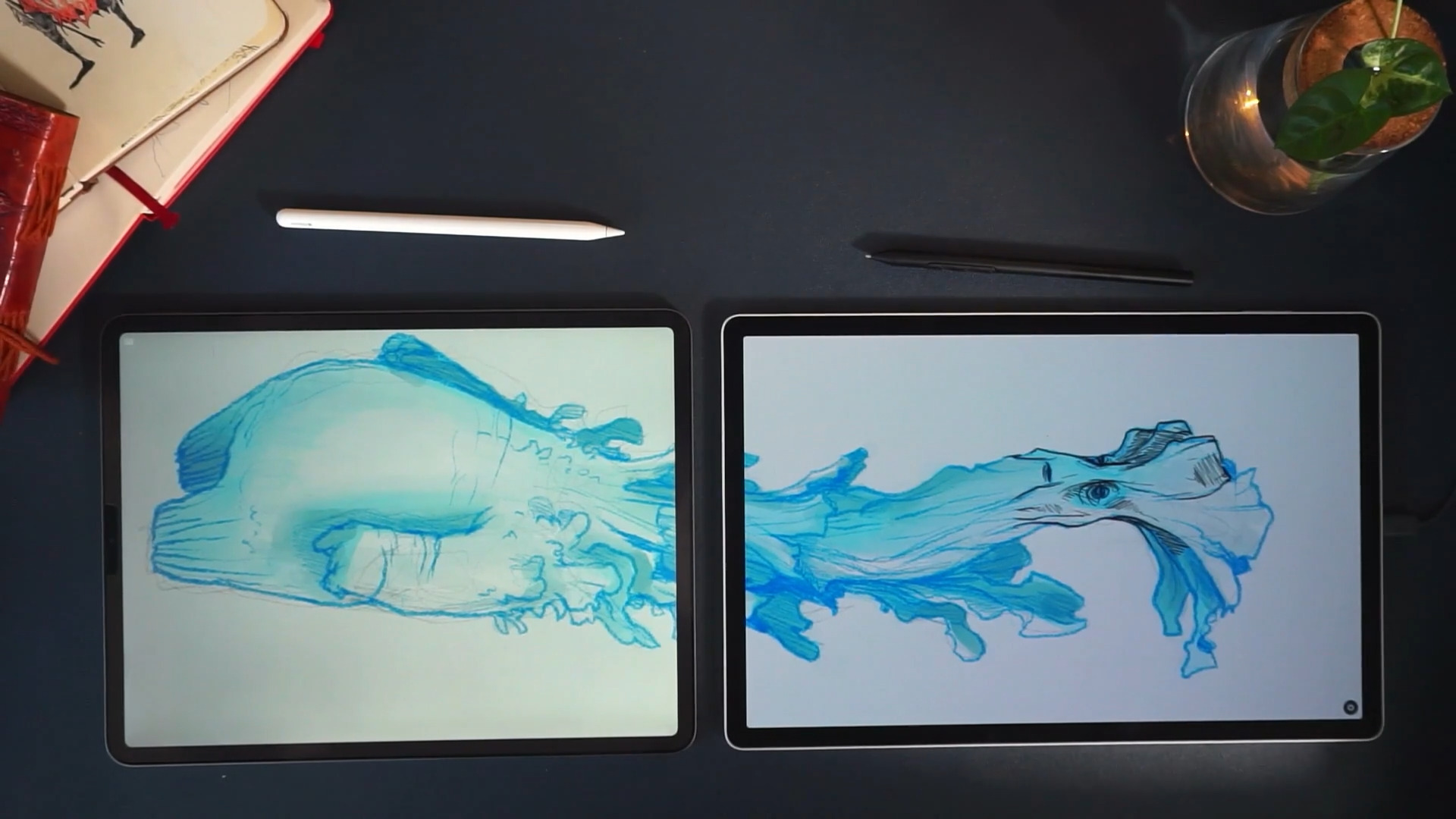
The Movink Pad Pro 14 delivers a true Wacom experience with excellent pressure sensitivity and tilt recognition, paired with a large matte OLED display that’s vibrant and glare-resistant. It can even function as a wireless USB pen display for your PC, which is a powerful addition, and it handles heavy applications and real-time renders surprisingly well while remaining lightweight and travel-friendly.
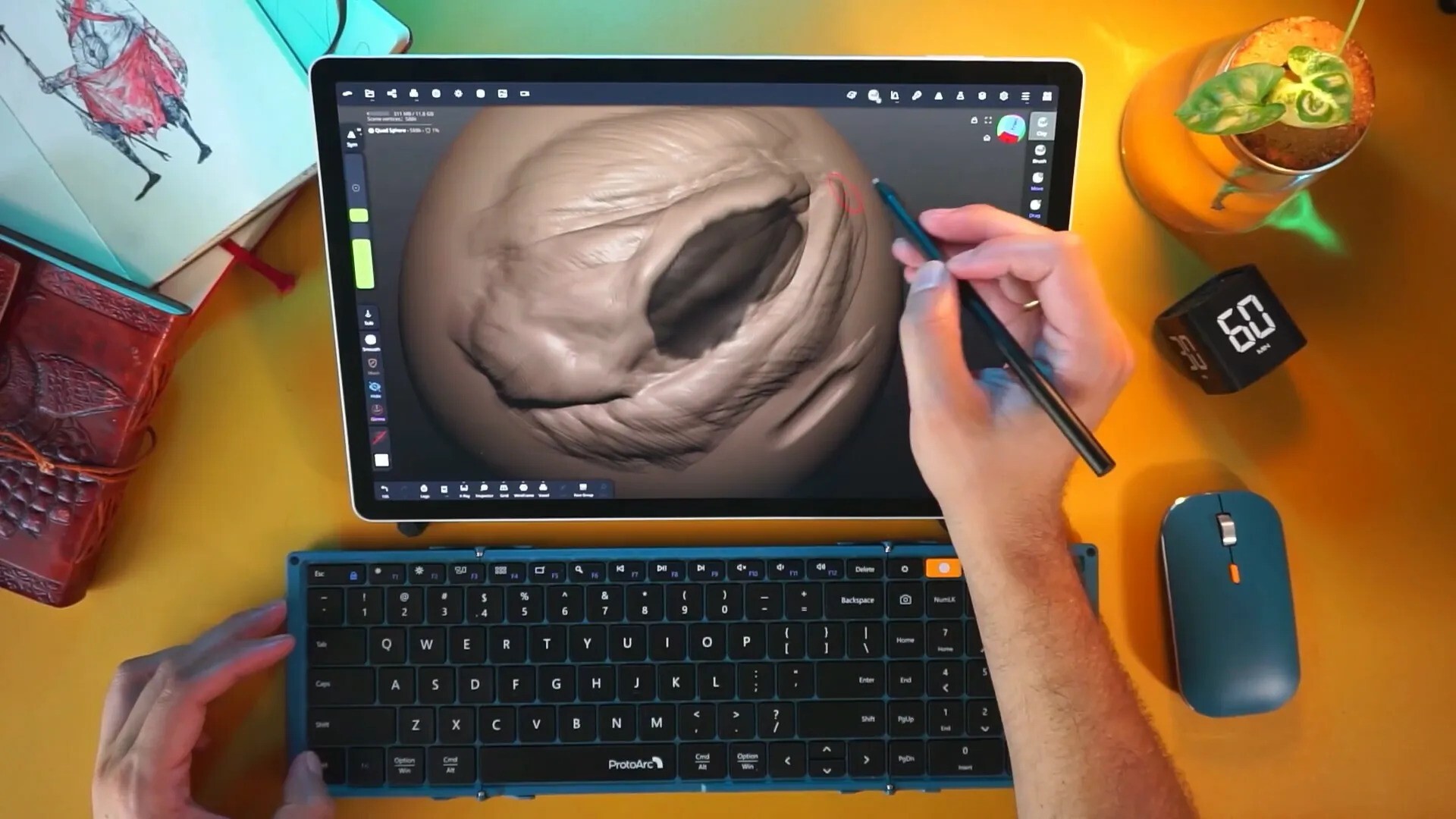
There are some limitations: pen-button customization isn’t available in display mode, the Android app ecosystem isn’t as mature as iPad OS, so it’s worth testing your preferred apps, and Instant Pen Display requires developer mode and a registration step. Despite these quirks, this is the most enjoyable Android creative tablet I’ve used, making it a legitimate alternative to an iPad for artists who value a Wacom Pad feel and the ability to double the tablet as a mini Cintiq. The trade-offs are reasonable, and the strengths are real. If you want a portable, capable drawing and sculpting device that also serves as a pen display, the Movink Pad Pro 14 should be on your shortlist.

Movink Pad 11 Review
The Wacom Movink Pad 11 is not a mini Movink Pad Pro 14 or a rival to an iPad Pro. It's a different tool with a clear purpose: a compact, portable digital sketchbook that feels surprisingly close to pen and paper. I pick it up and immediately notice how premium it feels. The build, the pen experience, and the software ecosystem all combine into something that I enjoy using for quick ideation, thumbnails, and even light 3D blockouts.
Check it out.jpg)