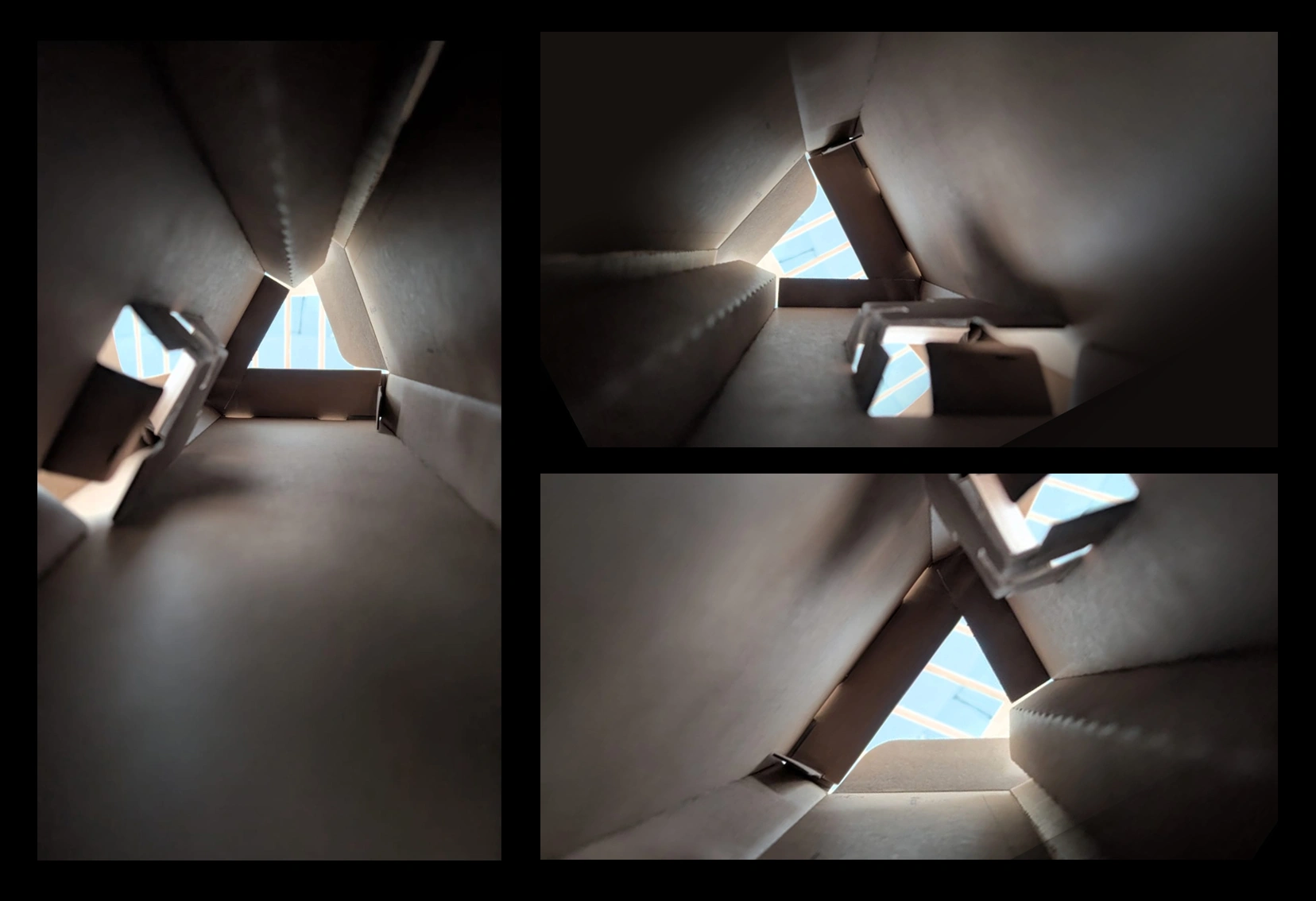

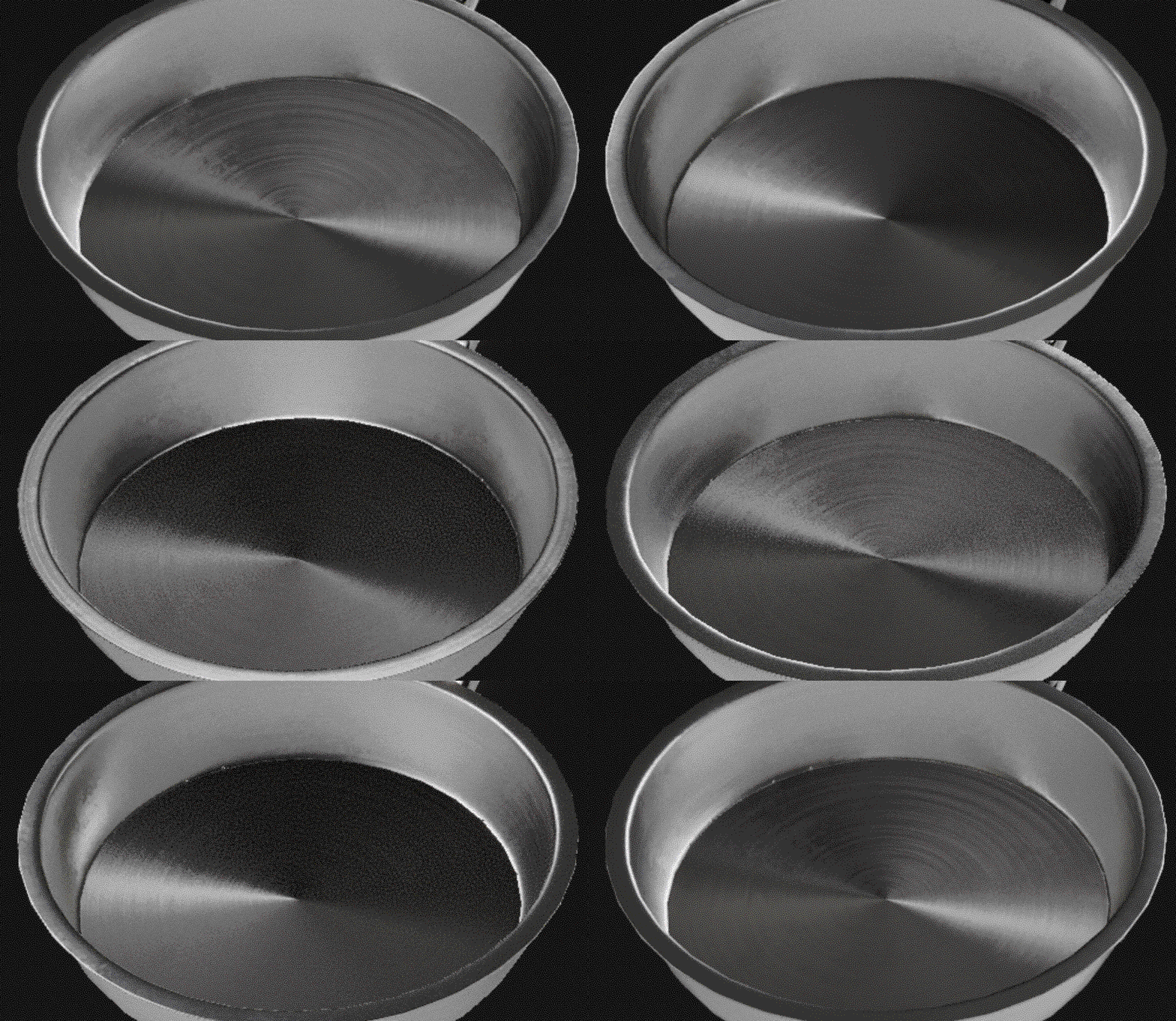
This tip might look a bit random but it has some logic... a few weeks ago I shared that tutorial on how to approach detailing and whether to do surface details in ZBrush or in Painter. I got an interesting question after that about creating the "welding" effect in ZBrush. Painter has a really nice preset for this, but what if you want it in ZBrush? That's why I'm sharing this one.
First, ZBrush already has a basic brush that sort of creates the effect. It's called Elastic. Here's the default behaviour on a subdivided sphere, plus a couple of variations you can get straight out of the box just by changing how you apply the strokes (the movement of your hand on the surface). Select the Elastic brush and give it a go:
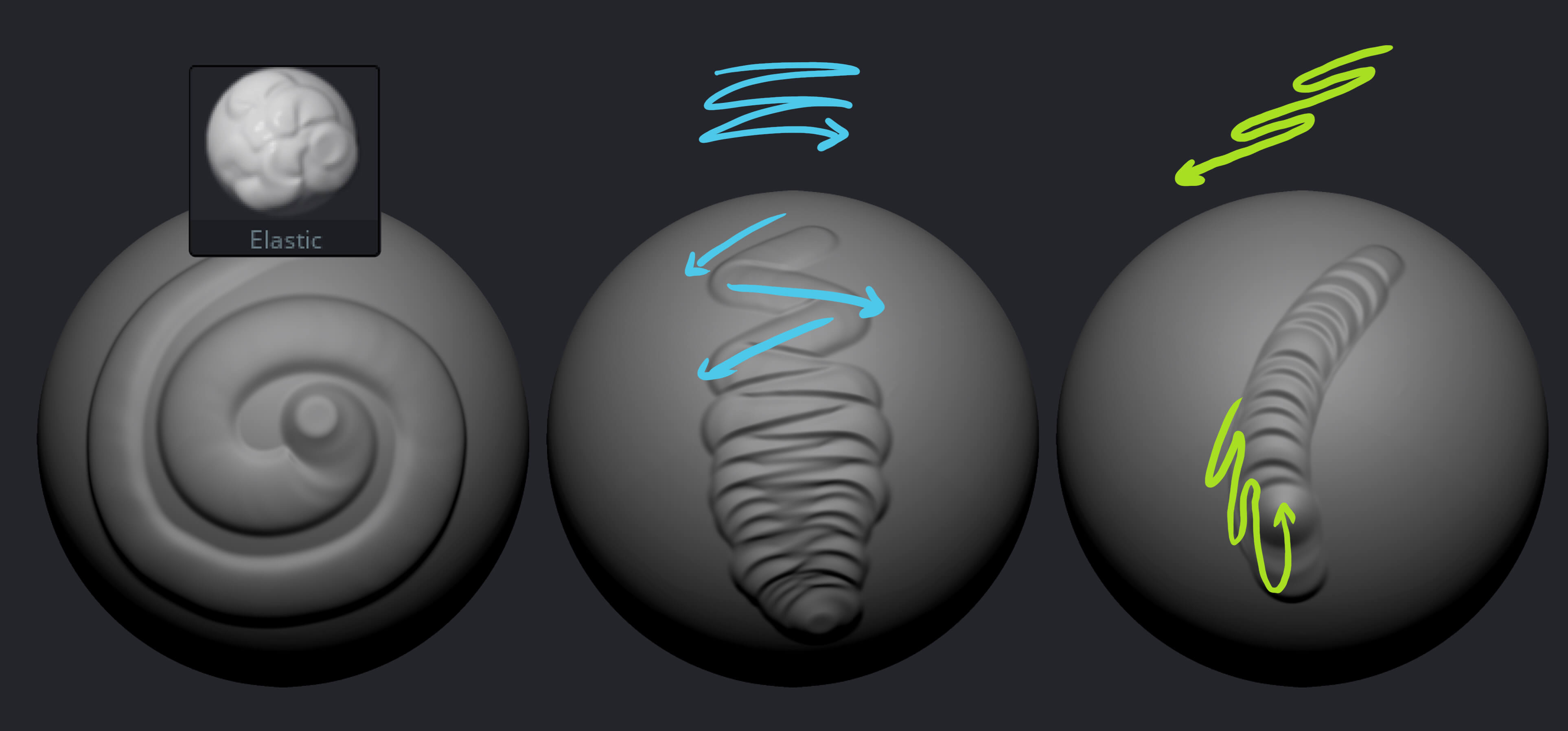
You'll see on the third option that if you go back and forth over the same area it already gives you something pretty close. That's because of how the Elastic brush samples and adds volume based on the surface... so here's the next step that makes it better.
Open the Brush palette, expand the Orientation subpalette, and set SpinCenter to 0.1, leave SpinAngle at 0, and set SpinRate to 10. That's it. Now when you make a stroke, the tip of the brush spins around itself and slightly off centre, creating that back and forth circular motion automatically and producing the welding effect.
You can also adjust the Focal Shift to make the transition harder, something like -70 or -50:
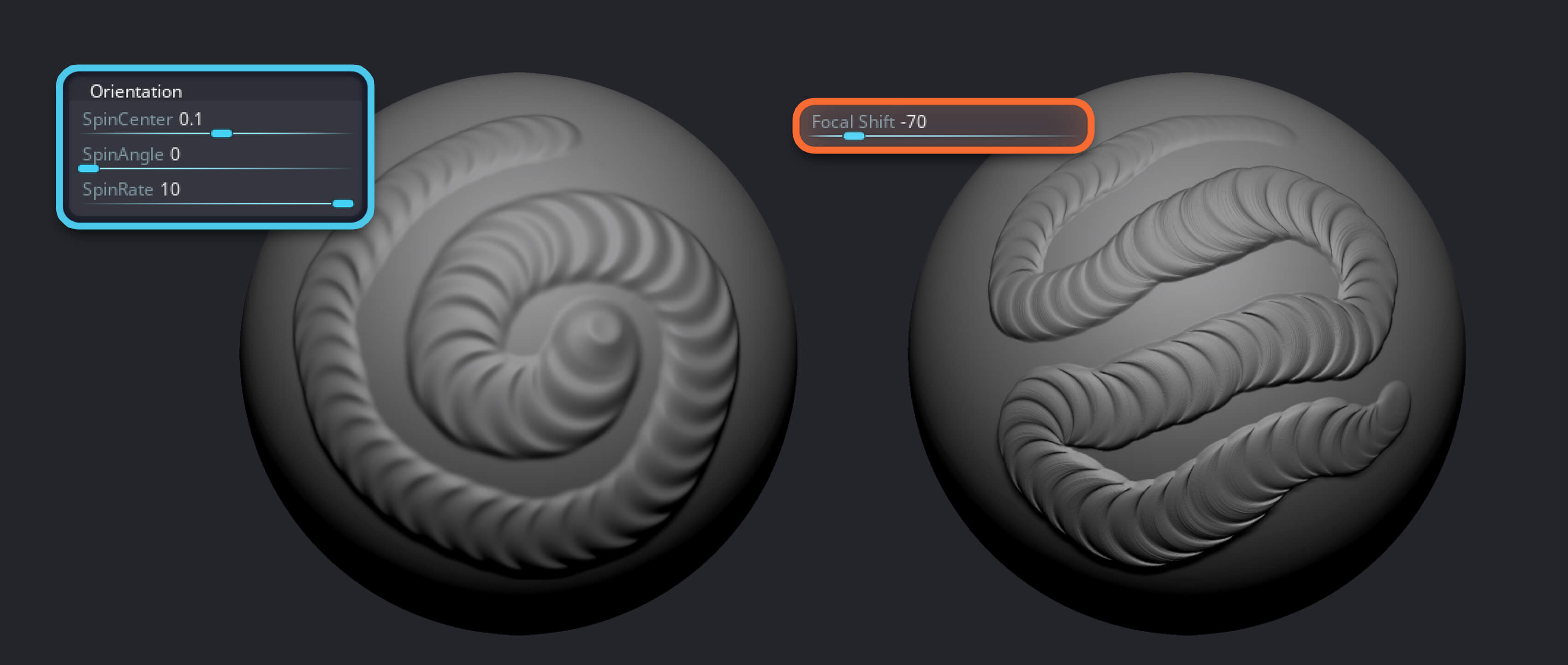
That's a brand new custom brush you just created in 2 steps. Now that the behaviour of the brush is there, you can keep experimenting with other values in Orientation, the Focal Shift, and even other alphas:
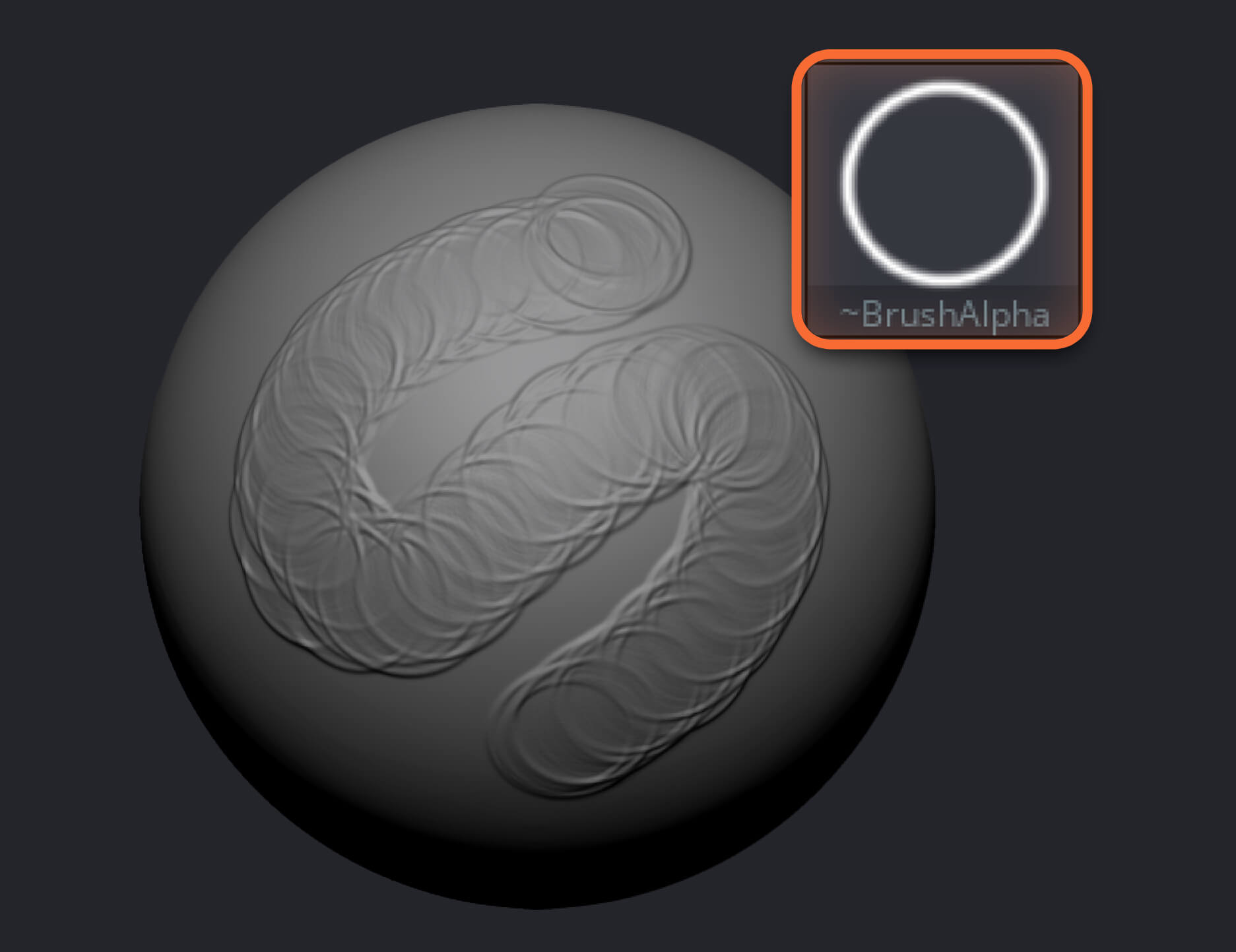
This is how I experiment and come up with my custom brushes, so hope you find it useful!




.jpg)
.jpg)