
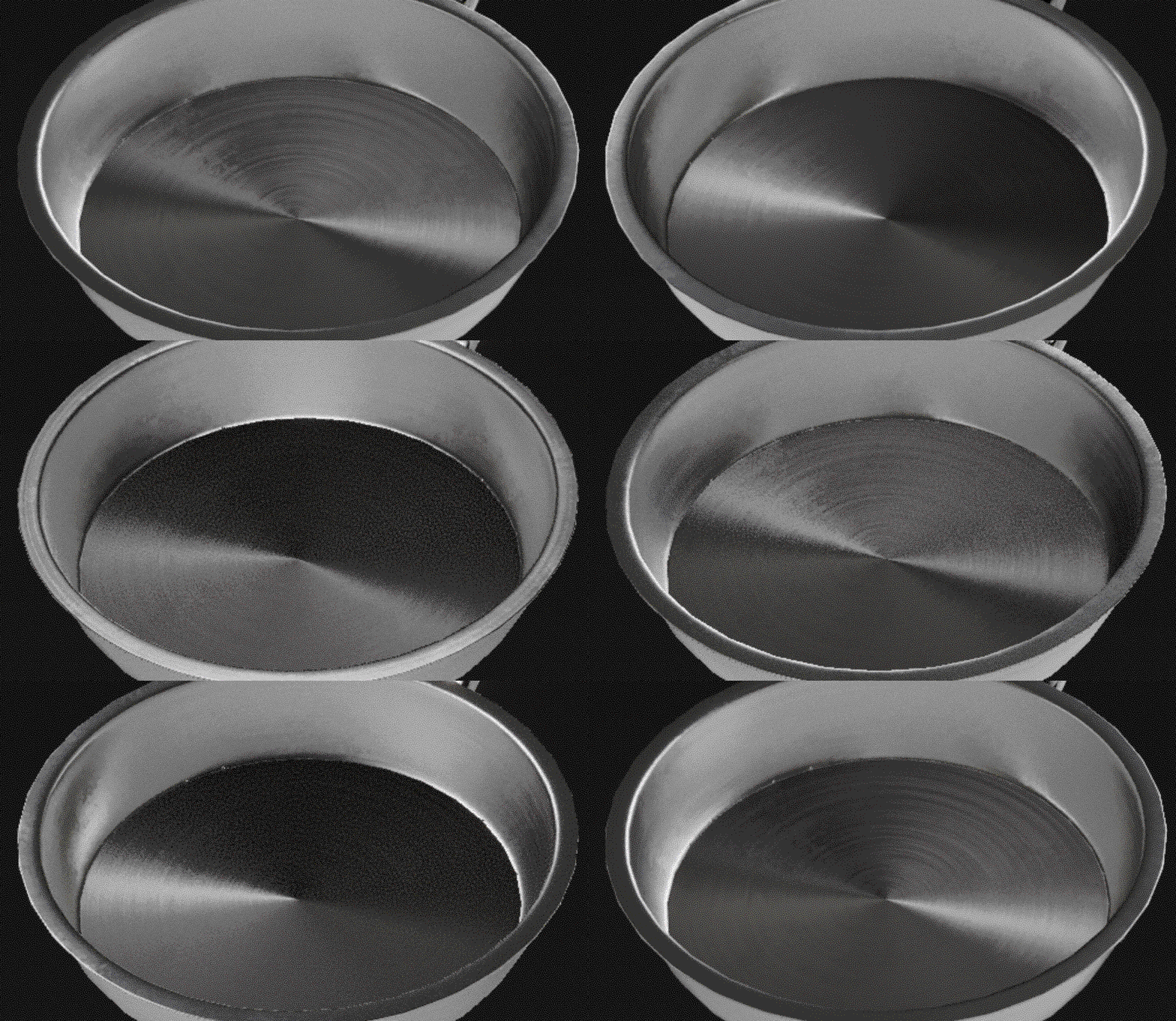
Before the anisotropic setup, here's a bonus tip that's super powerful for metallic surfaces. There's a specific set of filters for adding different finishes to metal that saves you a lot of time.
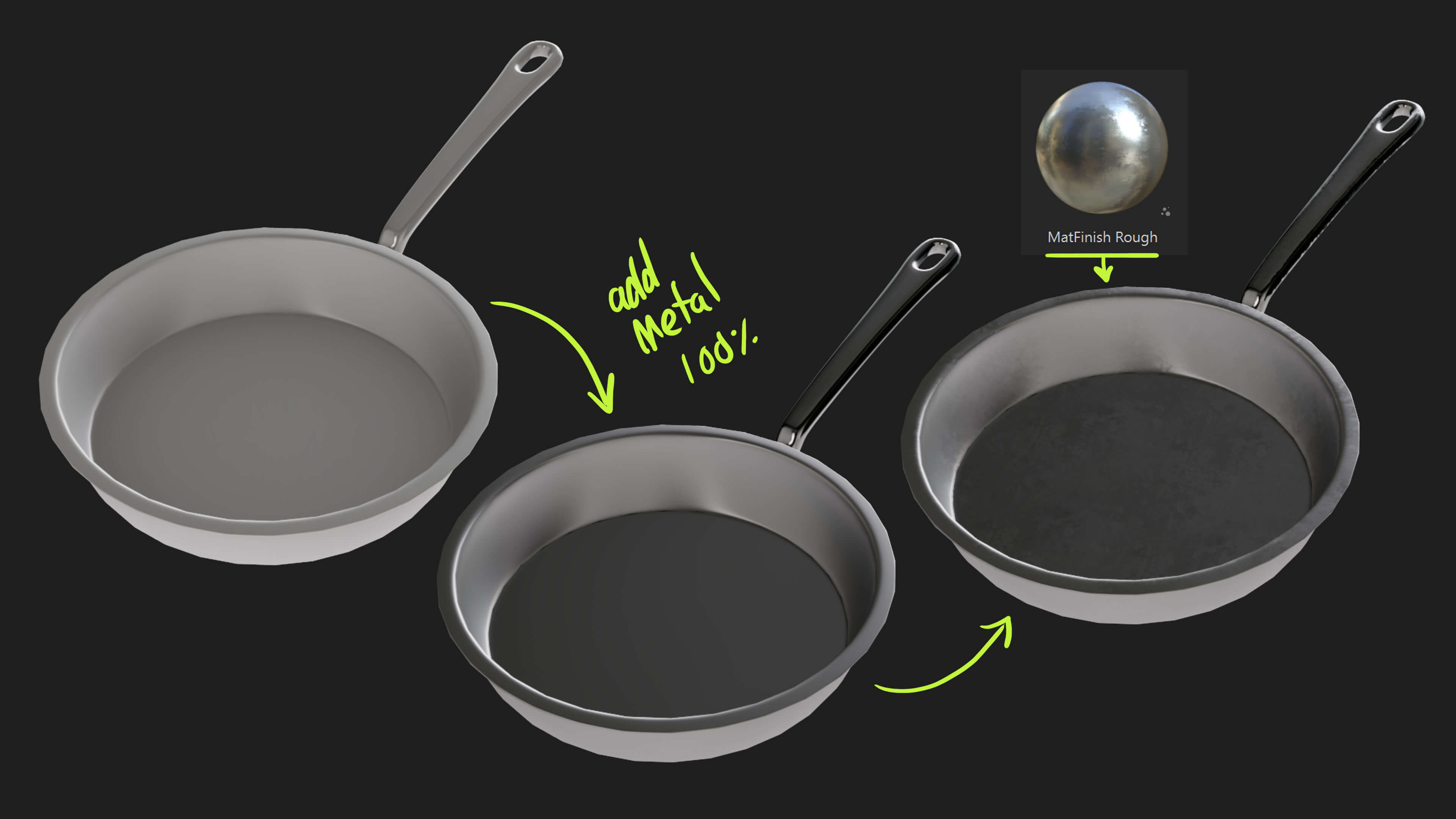
Start by adding a plain fill layer to your asset, then turn the Metal channel all the way up to 1. That's it, you now have a metallic object, but depending on your roughness value it could be very opaque or super reflective like a mirror.
So go to the library, find the filter MatFinish Rough and drop it on top. This produces a really convincing effect that breaks apart the roughness of your plain layer a bit more:
Now that you have the base of the metallic object, we can start setting up the anisotropic effect. There are three important things to get this happening:
- In the shader settings, make sure the "Enable Anisotropic" checkbox under Base Surface is ticked.
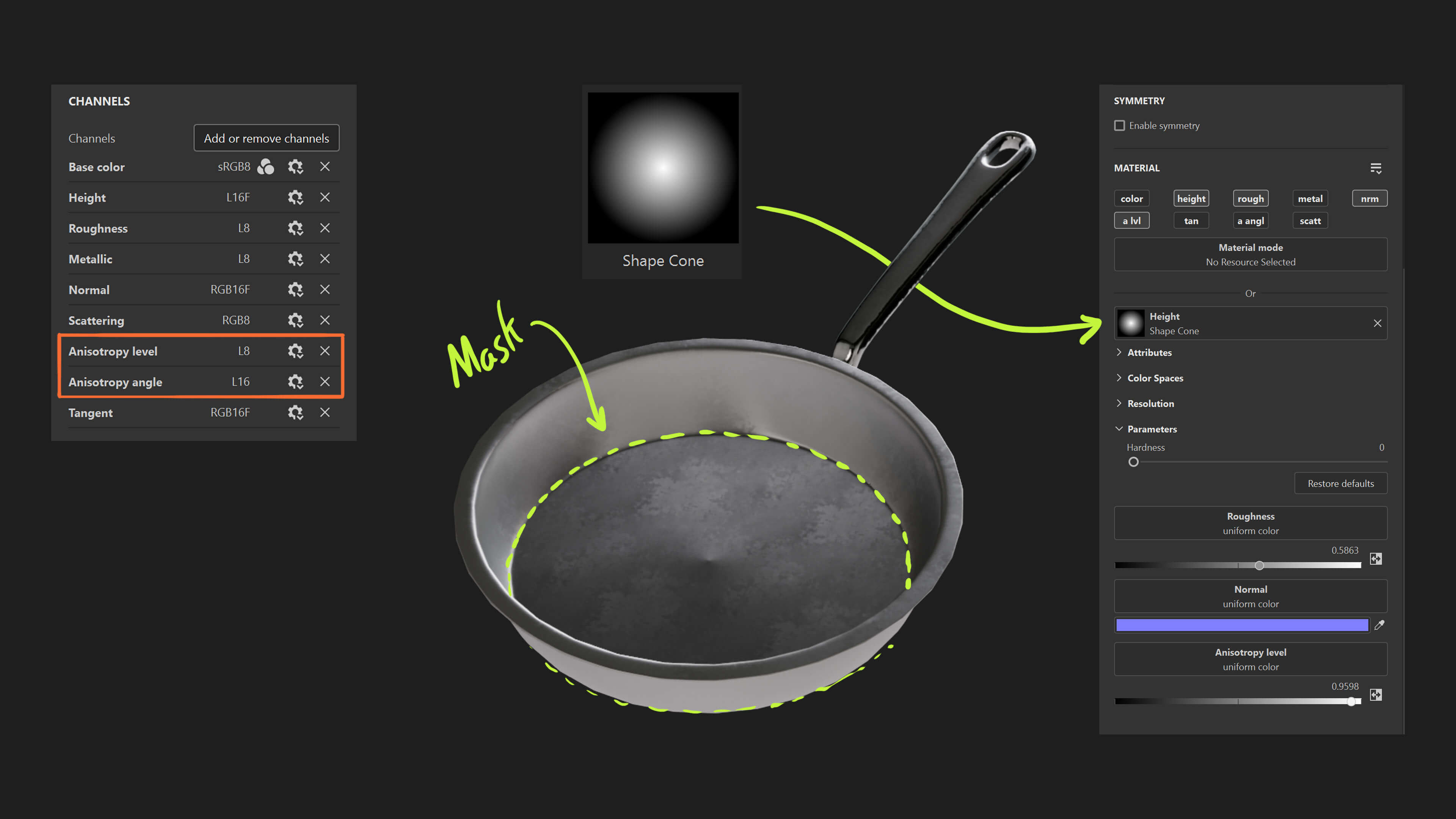
- Add a couple of channels from the texture set settings: Anisotropic Level (which controls the amount) and Anisotropic Angle (which controls the rotation of the distortion).
- Create a new layer and make sure you enable at least the Anisotropic Level.
With that initial setup, I dragged the Shape Cone alpha into the Height channel of the layer, masked the flat bottom of the pan, and used the warp projection to place the alpha right in the middle (you can see a bit of a bump right in the centre, that's the tip of the cone alpha).
Now… here's the real trick that distorts that height information into how the light reacts with the surface.
In the same layer, add a new filter and find "Height to Normal" in the filter library. What this does is grab all the height information, like the shape cone alpha we placed in the bottom, and bake those values into the Normal channel.
What that means in practice is that the black and white values that used to be just height information, high and low points, are now treated as directional information instead. Which is what a normal map does.
The cone shape alpha is an important part of the trick, and here's why. Anisotropic highlights stretch out perpendicular to the direction the normal is facing. A cone has a slope that rotates smoothly all the way around its centre, so once it's converted to normal information you get a direction that sweeps around in a circle, and the highlight streaks follow it.
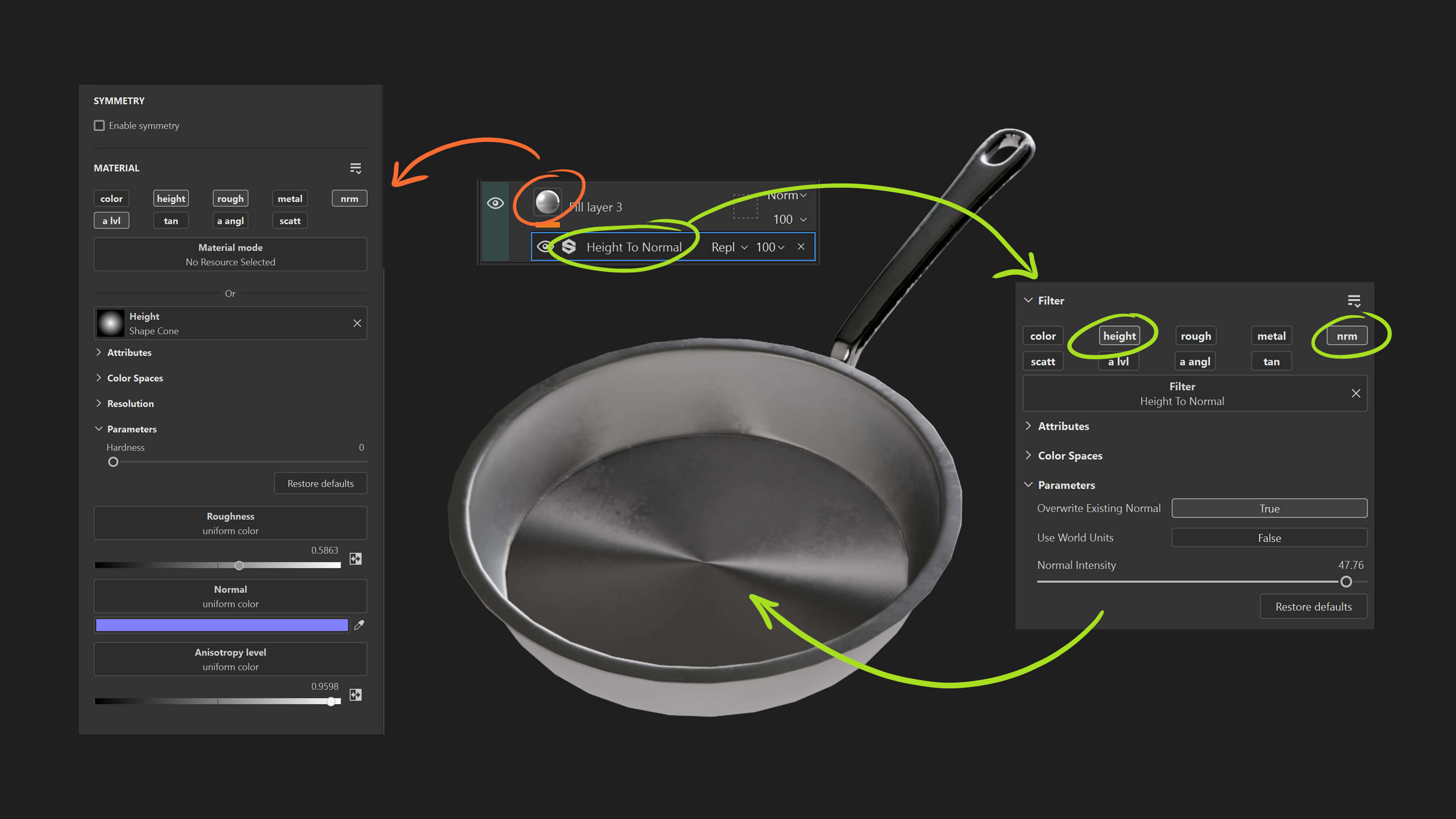
A couple of settings to keep an eye on in the filter: "Overwrite Existing Normal" set to True means this layer's normal replaces whatever normal detail sits underneath it. So if you've got a baked normal map in there and it suddenly vanishes, that's why. Switch it off if you want the two to blend.
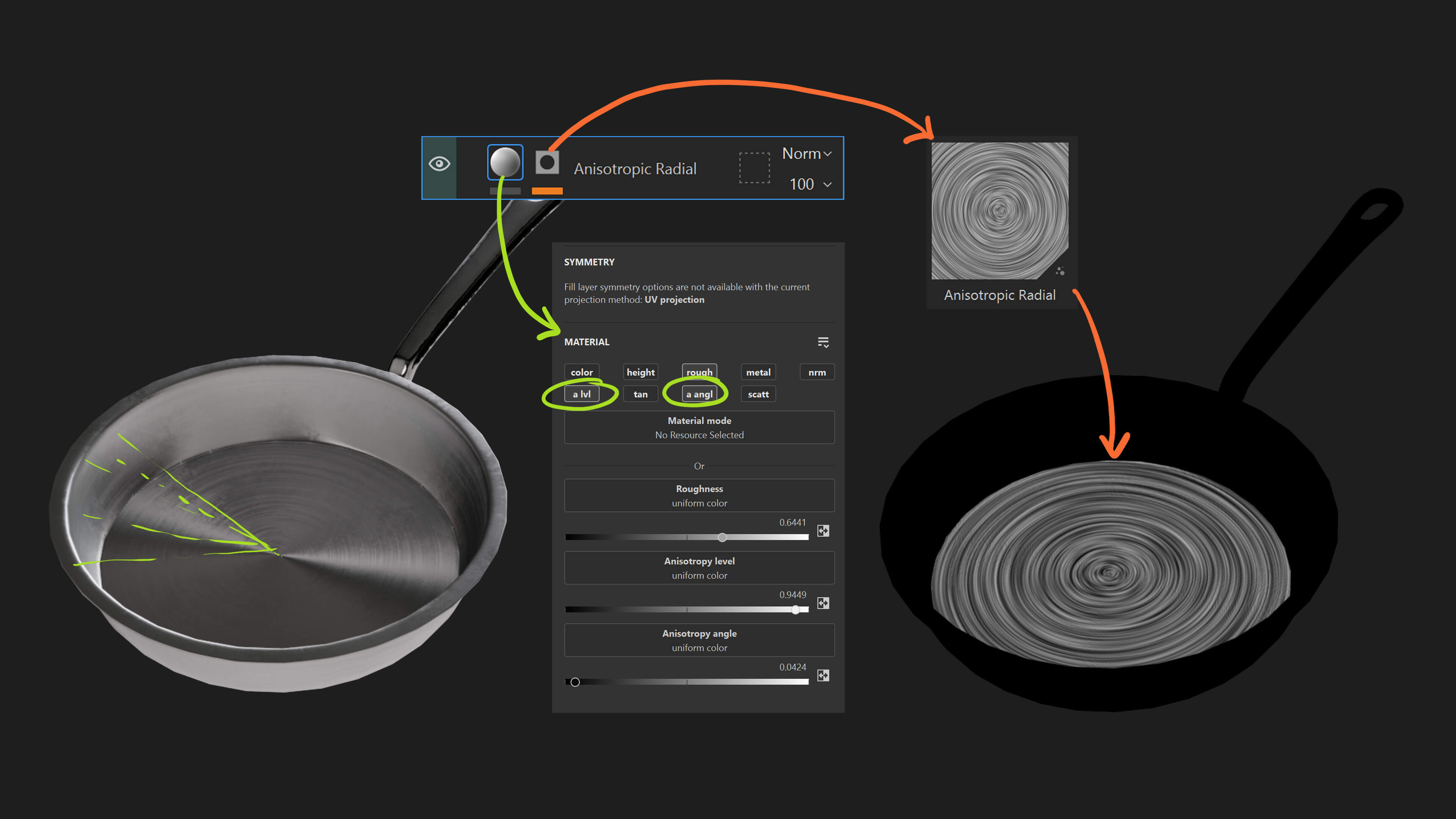
The final bit is adding those subtle concentric streaks. Create a new layer, drop in a mask with the Anisotropic Radial alpha, then enable the Anisotropic Level and the Anisotropic Angle so you can control the intensity and the rotation of the effect:
That's about it. You can do a lot more with these channels, but I thought this was a simple practical solution for this type of thing. It works well on LP discs and similar rounded shapes too.




.jpg)
.jpg)